

- From the chat. Your agent proposes the connection and you paste the key into a card.
- From the dashboard. You fill in the Custom connection form yourself.
Approve a connection from the chat
Ask your agent for what you need, for example “check my campaigns in AcmeCRM”. If there is no built-in app, the agent researches the API on its own and proposes a connection. A card appears in the chat: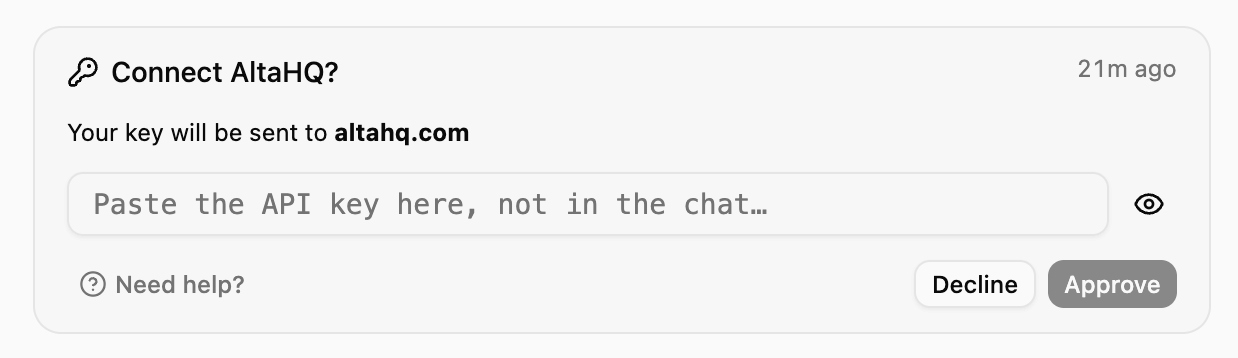
After you approve, the agent is told the connection is ready and continues your request.
Paste the key into the card, never into the chat message box. The key goes straight to encrypted storage. It never passes through the agent and is never saved in the chat history, approvals, or audit log. If you pasted a key into a chat message by mistake, revoke it in the service and add a new one.
Add a connection in the dashboard
Open the form in one of two ways:- Go to Connections → Custom and click Add connection.
- On an agent’s page, open Connections → Custom and click Add connection. The new connection is turned on for that agent.
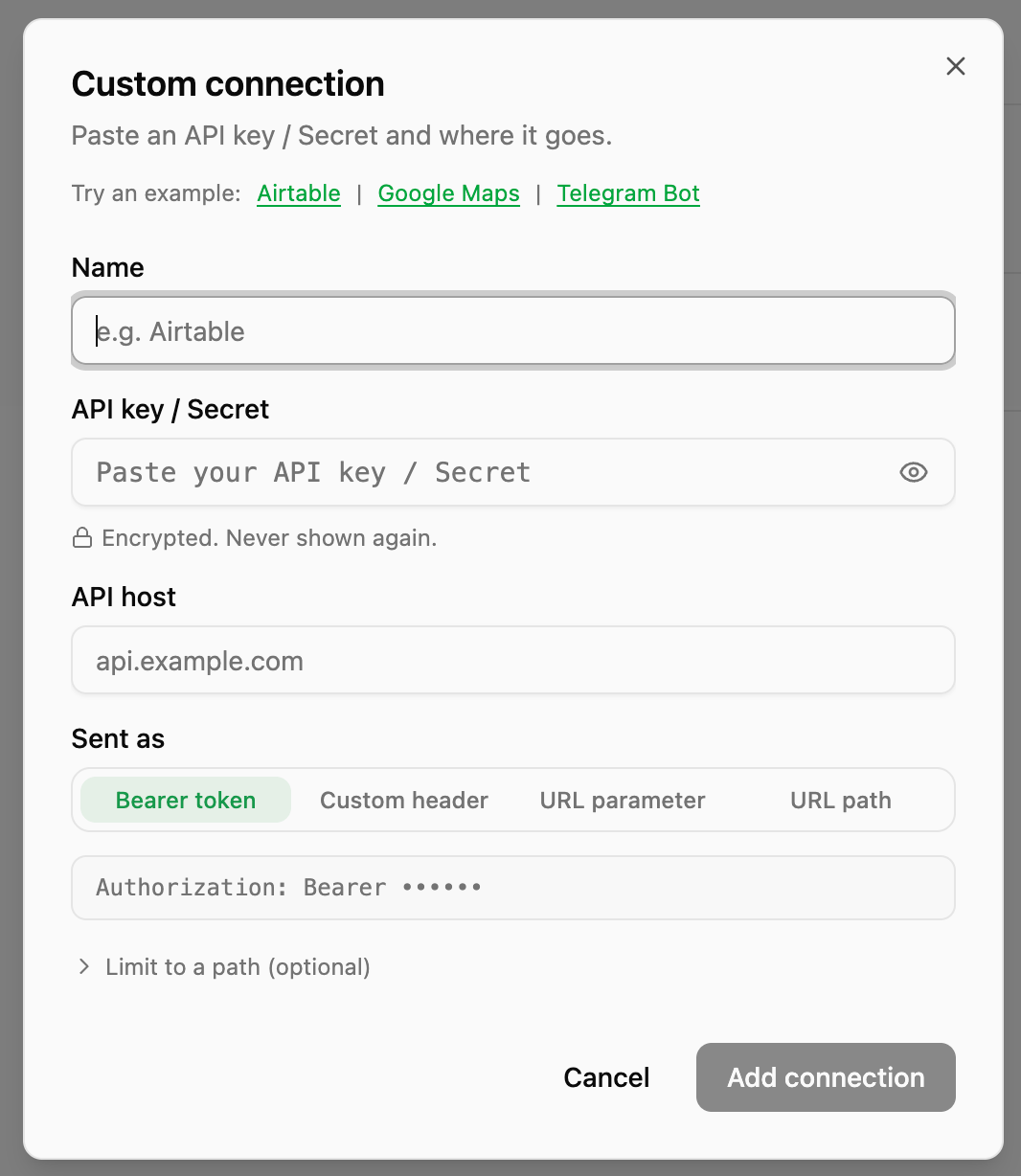
Try an example
Click Airtable, Google Maps, or Telegram Bot to fill in the form with a real API. Each one uses a different way of sending the key:
The example fills in everything except the key. Paste your own key to save it.
Fields
Sent as
Pick the option the service’s API docs describe. The form shows a preview of exactly what the gateway sends, with the key masked.- Bearer token
- Custom header
- URL parameter
- URL path
The default, and the most common option. The gateway sends:Use it when the docs mention a “Bearer token” or the
Authorization header.Save it
Click Add connection. A connection added from Connections → Custom isn’t turned on for any agent yet. Choose which agents can use it from the connection’s agent list or from each agent’s Connections page.Several accounts on the same API
You can add more than one connection for the same host, for example two Airtable accounts. When an agent calls that API and more than one connection matches, the gateway asks it to choose. The agent picks the right one for each request, so it can use both accounts in the same task.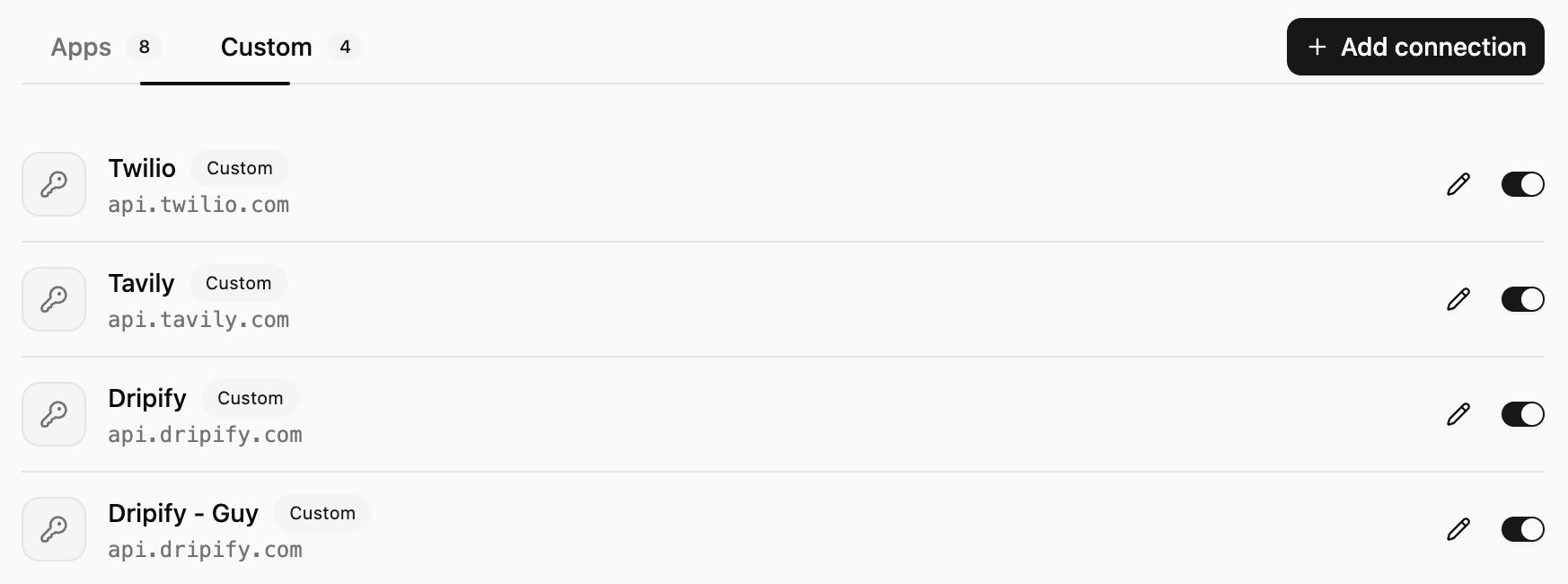
Airtable - Sales and Airtable - Marketing, so you and the agent can tell them apart. A workspace connection takes priority over an organization one. A connection limited to a path takes priority over one for the whole host.
Edit or remove a connection
Click the pencil icon on Connections → Custom, or on an agent’s Connections → Custom tab, to rename a connection or replace its key. When you replace a key, every agent keeps its current access. Delete a connection from Connections → Custom.Limitations
- HTTP Basic auth isn’t supported yet. APIs that log in with a username and password pair, sent as
Authorization: Basic …, can’t be connected as a custom connection. - Built-in apps come first. If OneCLI has a built-in app for the service, use it from App Connections instead.
Security
- Keys are encrypted at rest and decrypted only by the gateway, at request time.
- Agents never see the key. They make normal requests and the gateway adds it.
- The key is sent only to the host you set, never to other domains.
- Rules apply to custom connections too: block requests, require approval, or set rate limits.