

Overview
OneCLI connects AI agents to AWS services (S3, EC2, Lambda, DynamoDB, and all other AWS APIs) through the gateway. The gateway handles SigV4 request signing, so agents make standard HTTP requests and credentials are injected transparently. OneCLI supports two connection methods for AWS:How the gateway handles AWS requests
Quick example
An agent calling S3 through the gateway, with no AWS SDK or credentials needed:boto3, configure ~/.aws/credentials, or set environment variables. It makes a plain HTTP request and the gateway handles authentication.
Access Keys (Free)
The simplest way to connect. You create an IAM user in AWS, generate access keys, and paste them into OneCLI.Setup
1
Create an IAM user in AWS
Go to IAM > Users > Create user. Attach the permissions your agents need (e.g.,
AmazonS3ReadOnlyAccess).2
Generate access keys
In the user’s Security credentials tab, click Create access key. Select Third-party service as the use case. Copy the Access Key ID and Secret Access Key.
3
Connect in OneCLI
Open the OneCLI dashboard, go to Connections > AWS, and paste: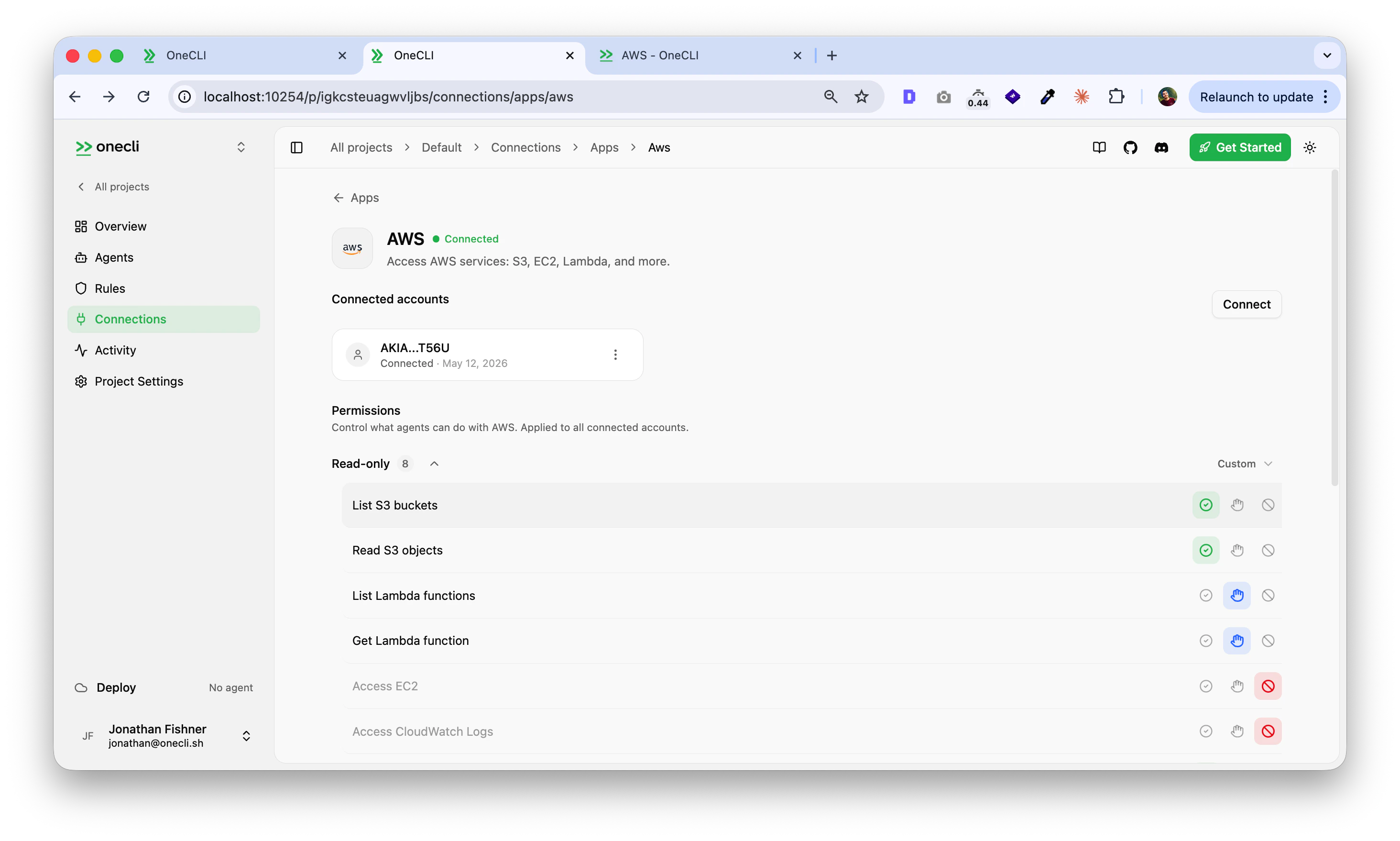
- Access Key ID: your
AKIA...value - Secret Access Key: the secret
- Default Region: the AWS region to use (e.g.,
us-east-1)
How it works
- Credentials are encrypted and stored by OneCLI
- When an agent sends a request to
*.amazonaws.com, the gateway intercepts it - The gateway signs the request using AWS SigV4 with the stored credentials
- The signed request is forwarded to AWS
Use cases
- Running
aws s3 lsthrough a coding agent - Agents deploying Lambda functions or managing CloudFormation stacks
- Querying DynamoDB or reading from S3 during code generation
Limitations
- Credentials are long-lived and don’t expire until manually rotated
- All agents with access to the connection share the same IAM permissions
- You can restrict access at the gateway level with rules (block specific hosts/paths), but not at the AWS IAM level per agent
Cross-Account Role (Cloud)
For teams and B2B deployments. Instead of sharing access keys, your AWS admin creates an IAM role in your account and grants OneCLI permission to assume it. OneCLI gets temporary credentials that expire after 1 hour and are automatically refreshed.Why use cross-account roles
- OneCLI never stores your long-lived AWS credentials. The IAM role trust policy is the only configuration on your side.
- STS AssumeRole returns credentials that expire in 1 hour. If they leak, exposure is limited.
- The IAM role’s policies define the maximum actions any agent can perform. You manage this in your own AWS account.
- OneCLI can pass session policies per agent, further restricting what each agent can do within the role’s permissions.
Setup
1
Get your External ID
Open the OneCLI dashboard, go to Connections > AWS (Cross-Account). You’ll see two values:
- OneCLI Account ID: the AWS account that will assume the role
- External ID: a unique identifier for your organization (auto-generated)
2
Create an IAM role in your AWS account
In the AWS console, go to IAM > Roles > Create role:
- Select Another AWS account
- Enter the OneCLI Account ID
- Check Require external ID and paste your External ID
- Do not check “Require MFA” (OneCLI is a machine identity)
- Click Next
AmazonS3ReadOnlyAccessfor read-only S3 access- A custom policy allowing specific actions on specific resources
OneCLI-Agent-Role) and create it.3
Connect in OneCLI
Copy the Role ARN from the role summary page (e.g.,
arn:aws:iam::123456789012:role/OneCLI-Agent-Role).Back in the OneCLI dashboard, paste:- Role ARN: the ARN you just copied
- Default Region: the AWS region to use
How it works
- When an agent sends a request to
*.amazonaws.com, the gateway intercepts it - The gateway calls STS AssumeRole using OneCLI’s own AWS identity, with your role ARN and External ID
- AWS returns temporary credentials (access key, secret key, session token) valid for 1 hour
- The gateway caches these credentials and signs the request using SigV4
- The signed request is forwarded to AWS
- When the cached credentials near expiry, the gateway calls AssumeRole again automatically
The permission model
Cross-account roles give you two layers of permission control:s3:*, but a specific agent’s session policy narrows it to s3:GetObject only. Session policies can only remove permissions, never add them.
Example: read-only vs full-access agents
Your AWS admin creates a role withAmazonS3FullAccess. In OneCLI, you configure:
The audit agent cannot write to S3 even if it tries, because the session policy restricts it at the AWS level.
Use cases
- B2B customers giving agents access to their AWS account with controlled permissions
- CI/CD agents that need temporary AWS access for deployments
- Multi-team environments where different agents need different permission levels
- Compliance-sensitive workloads where long-lived credentials are not acceptable
Comparison
Per-action permissions
Once connected, the dashboard shows a permissions panel where you control exactly what agents can do with AWS. Each action has three modes:
OneCLI ships with preset permission groups:
- Read-only: allows listing and reading resources (S3 buckets, Lambda functions) while blocking writes and destructive operations
- Custom: configure each action individually
- List S3 buckets / Read S3 objects: browse and read from S3
- List Lambda functions / Get Lambda function: inspect serverless functions
- Access EC2: manage compute instances
- Access CloudWatch Logs: read monitoring and log data
Controlling access
Both connection methods are per agent: grant the connection to each agent that should use AWS. Organization rules then add guardrails that apply to everyone:- Block requests to
iam.amazonaws.comto prevent privilege escalation - Limit S3 write operations to 100/hour
- Flag destructive operations (e.g.,
DELETErequests) for manual approval