OneCLI connects AI agents to Datadog using an API key and application key. Agents can query metrics, list monitors, check incident status, and view dashboard data. The gateway injects both keys into requests to the Datadog API automatically.This is useful for on-call agents that need to investigate incidents, coding agents that check deployment metrics, or reporting agents that pull monitoring data.
OneCLI is two things in one: a credential vault and a request gateway.When an agent makes a request to Datadog, it flows through OneCLI’s gateway. At request time, two things happen:
Secret injection: OneCLI injects the API key and application key into the outgoing request. The agent itself never sees the raw credentials.
Request inspection: OneCLI evaluates the request against your rules before it leaves. If the request violates a policy (e.g., an agent tries to send a sensitive identifier to Datadog, or attempts a write operation you haven’t allowed), OneCLI blocks it. The request never reaches Datadog.
This means OneCLI protects more than just the API key. It controls what data the agent can read and write through the Datadog API.
The Datadog integration goes through the Datadog API directly, using Datadog’s agent skills. There is no MCP server in the middle. Your agent calls the Datadog API, and OneCLI’s gateway intercepts the request, applies your rules, injects the credentials, and forwards it. This gives you full visibility and control over every request.
For a deeper look at the gateway architecture, see How it works.
In Datadog, go to Organization Settings > Application Keys (or navigate to https://app.datadoghq.com/organization-settings/application-keys).
Click + New Key, name it OneCLI, and click Create Key.
Copy the key immediately.
Create dedicated keys for OneCLI rather than reusing existing ones. This makes it easy to rotate or revoke access later without affecting other integrations.
Open the OneCLI dashboard and navigate to Connections > Datadog.
2
Enter your credentials
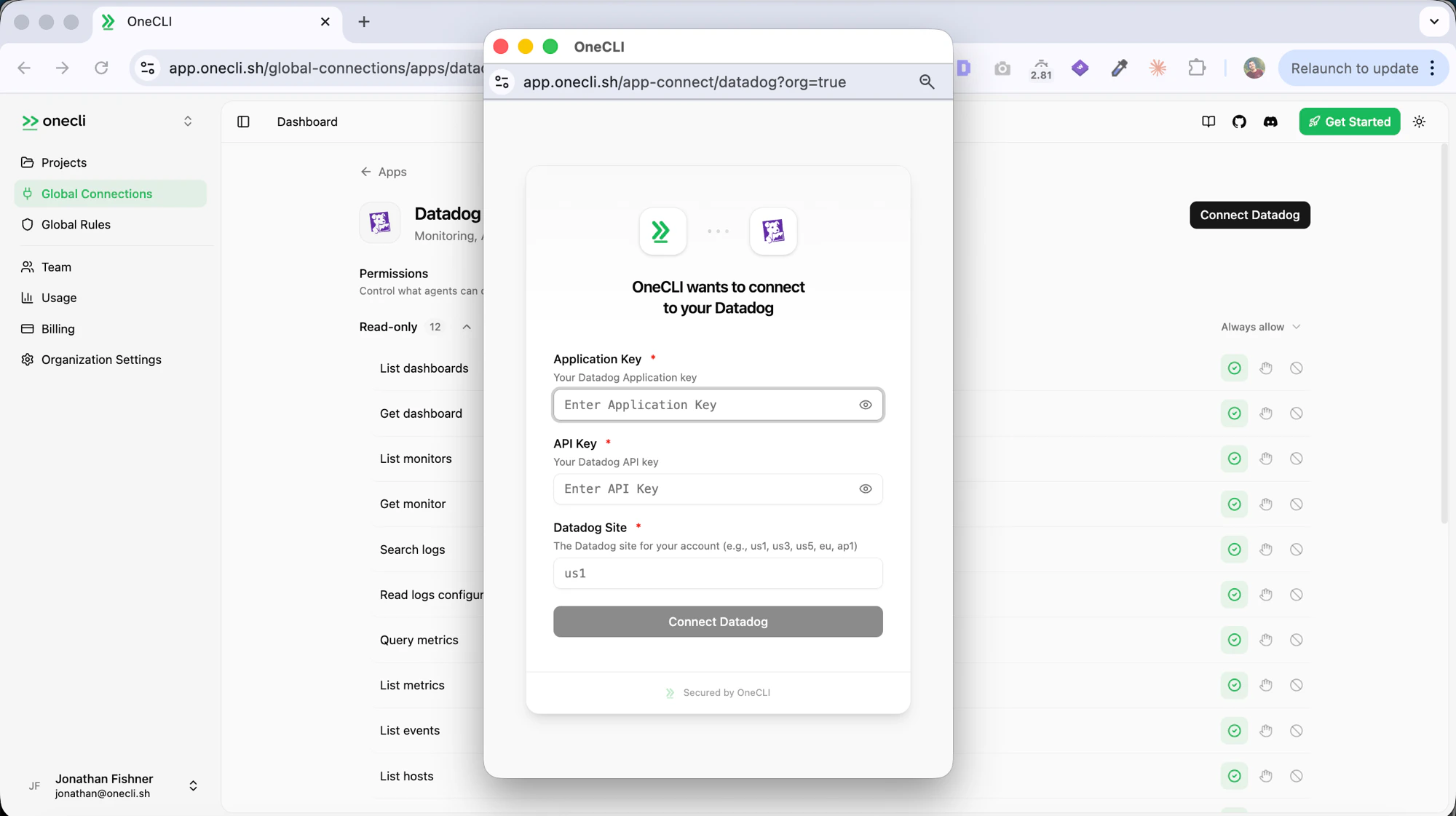
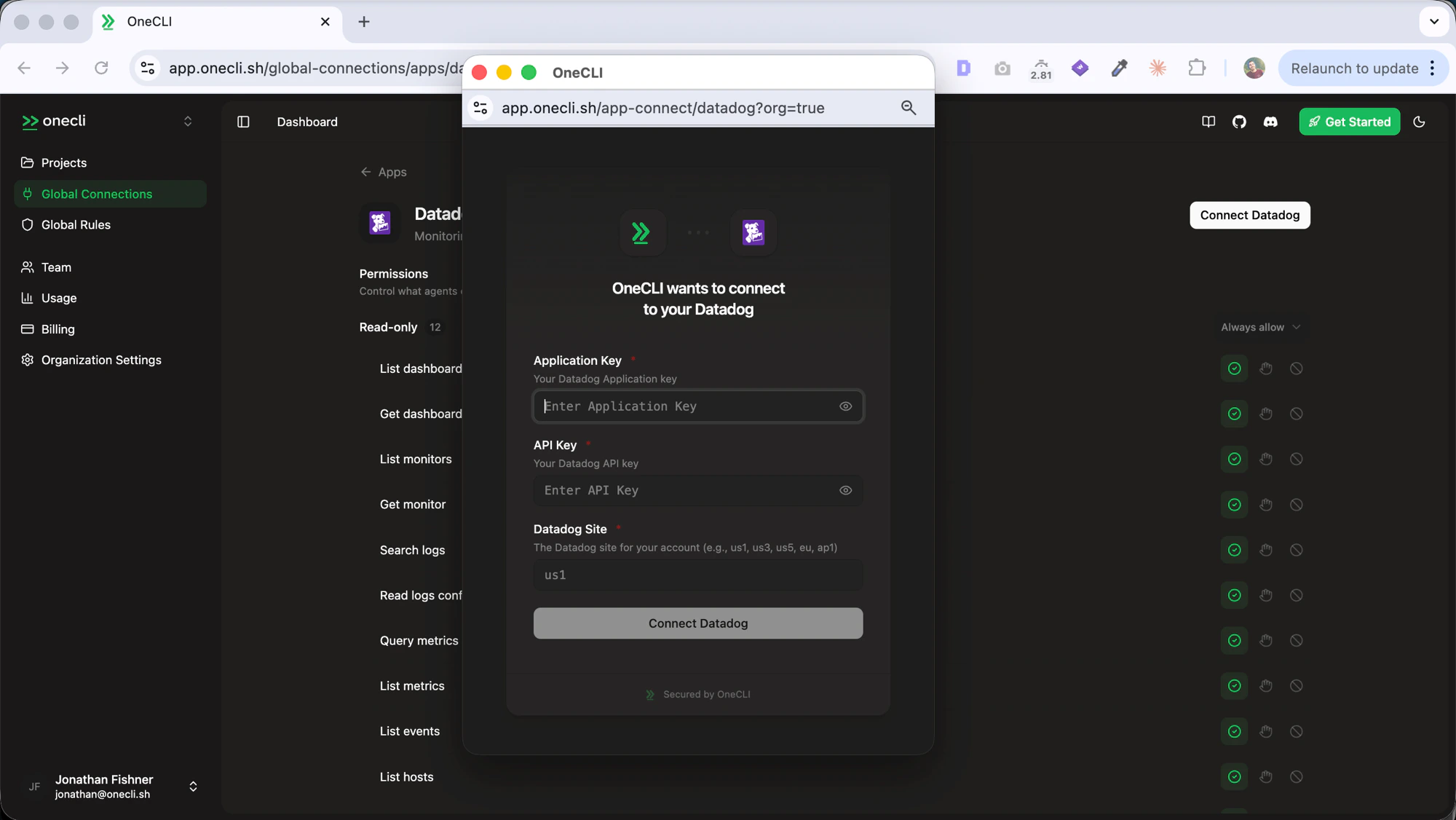
Click Connect Datadog. In the connection dialog, enter your Application Key, API Key, and Datadog Site, then click Connect Datadog.
Datadog connection dialog
3
Verify
After connecting, the Datadog connection will show as Connected in your dashboard. OneCLI stores your keys encrypted and injects them into agent requests through the gateway. Your keys are never exposed to the agent itself.
Access is per agent: grant the connection to each agent that needs it, choosing per tool what runs freely, what needs human approval, and what stays blocked — a read-only agent is a single grant. Organization rules add guardrails on top, like rate limits and blanket blocks. Everything is checked before credential injection, so a blocked request never reaches Datadog.