> ## Documentation Index
> Fetch the complete documentation index at: https://onecli.sh/docs/llms.txt
> Use this file to discover all available pages before exploring further.
# Quickstart
> Sign up for OneCLI and connect your first agent to external services in under five minutes. No code changes needed.
Follow this guide to set up OneCLI and give your agent secure access to external services.
## For coding agents
For developers using Claude Code, Cursor, Codex, or other coding agents. No SDK or Docker needed.
Go to [app.onecli.sh](https://app.onecli.sh) and create an account. A project and API key are generated automatically.
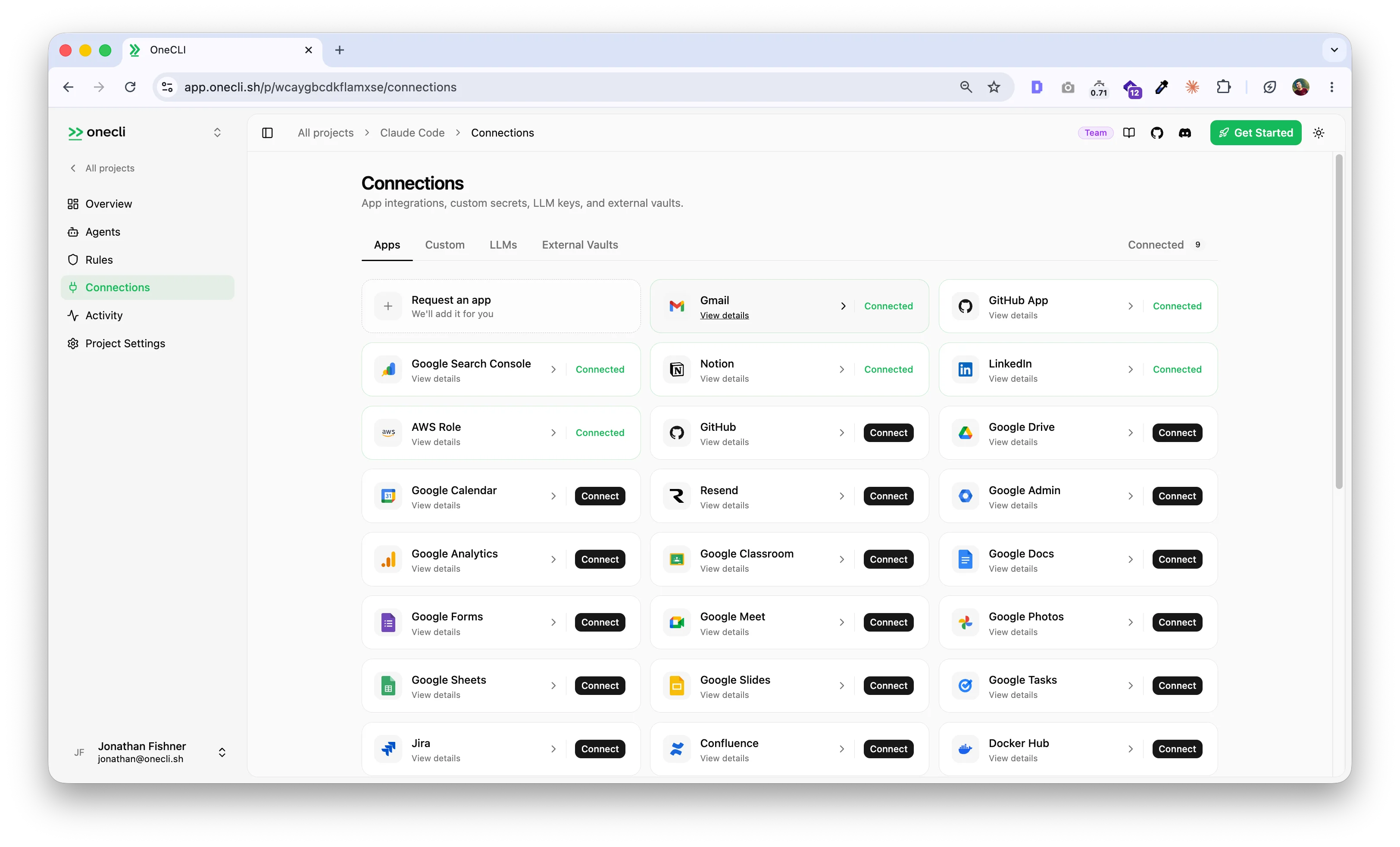
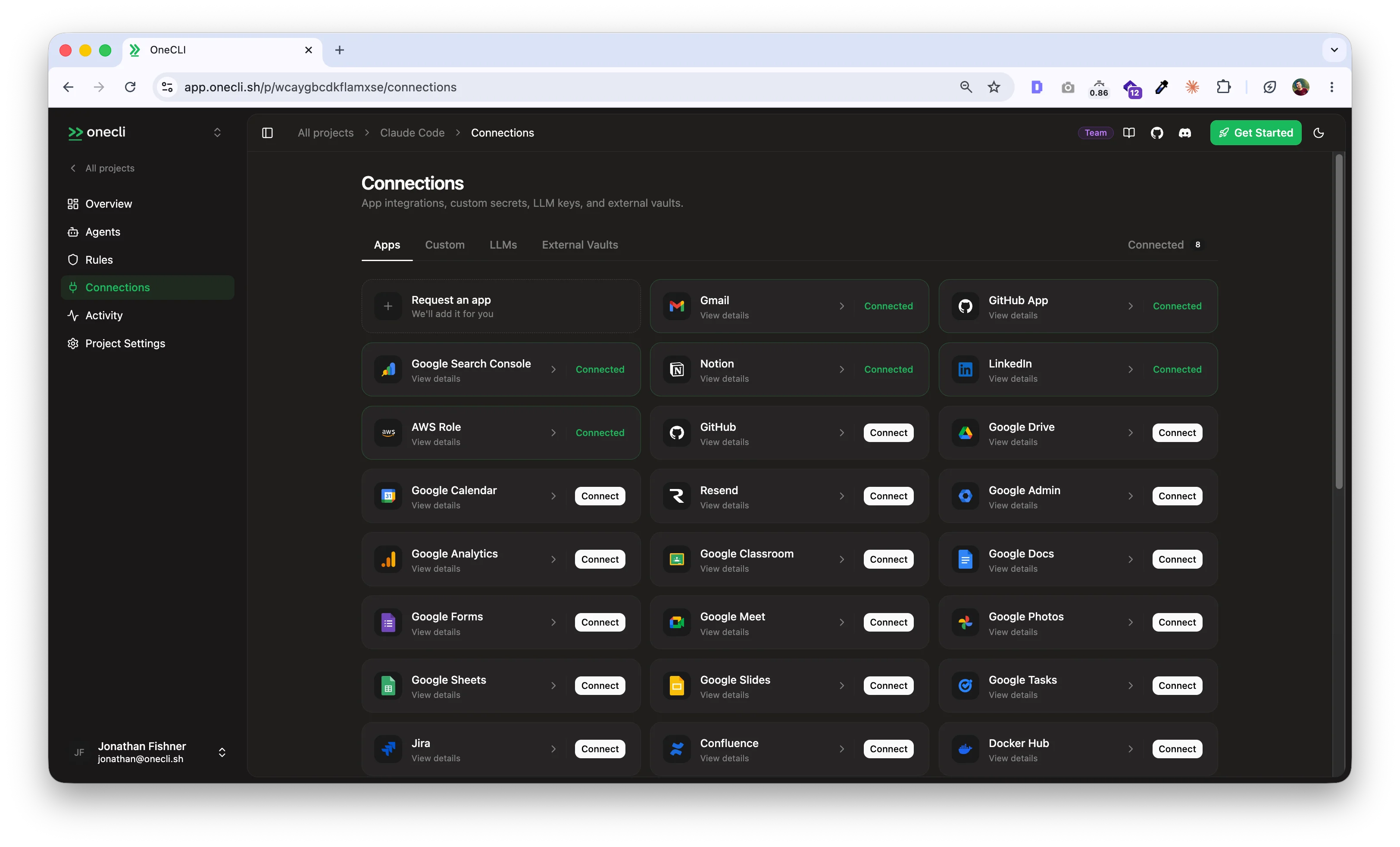
From the dashboard, connect the services your agent needs (Google, GitHub, Slack, AWS, etc.). Most services connect with OAuth in one click.
 ```bash theme={null}
curl -fsSL onecli.sh/cli/install | sh
onecli auth login --api-key oc_your_api_key
onecli run -- claude
```
This wraps your agent with proxy settings, CA certificates, and agent skills automatically.
That's it. Your agent's HTTP calls now route through OneCLI, which injects credentials and enforces your [rules](/docs/guides/rules). Your agent never sees the raw keys.
Replace `claude` with your agent of choice:
```bash theme={null}
onecli run -- cursor
onecli run -- codex
onecli run -- your-custom-agent
```
See the [Coding Agents guide](/docs/guides/coding-agents) for advanced configuration.
## For SDK and Docker agents
For agents running in Docker containers or programmatic setups. Use the SDK to configure containers automatically.
Sign up at [app.onecli.sh](https://app.onecli.sh) if you haven't already. Your API key is available in the dashboard.
You can also create agents programmatically via the [API](/docs/api-reference):
```bash theme={null}
curl -X POST https://api.onecli.sh/agents \
-H "Authorization: Bearer $ONECLI_API_KEY" \
-H "Content-Type: application/json" \
-d '{ "name": "my-agent", "identifier": "my-agent" }'
```
```bash npm theme={null}
npm install @onecli-sh/sdk
```
```bash pnpm theme={null}
pnpm add @onecli-sh/sdk
```
```bash pip theme={null}
pip install onecli
```
```typescript theme={null}
import { OneCLI } from "@onecli-sh/sdk";
const onecli = new OneCLI({
apiKey: "oc_your_api_key",
});
const args = ["run", "-i", "--rm", "--name", "my-agent"];
await onecli.applyContainerConfig(args);
// args now has HTTPS_PROXY, CA certs, and volume mounts
console.log("Container configured for OneCLI");
```
No `url` parameter needed -- the SDK defaults to the managed service at `api.onecli.sh`.
See the [Node.js SDK docs](/docs/sdks/node) for the full API reference including manual approval, project provisioning, and org-level keys.
## Self-hosting
OneCLI is also available as an open-source project you can run on your own infrastructure.
```bash theme={null}
docker run --pull always -p 10254:10254 -p 10255:10255 -v onecli-data:/app/data ghcr.io/onecli/onecli
```
This starts both the web dashboard (port 10254) and the gateway (port 10255) in a single container with embedded storage. Open [localhost:10254](http://localhost:10254) to manage agents, secrets, and rules.
Or with Docker Compose:
```bash theme={null}
git clone https://github.com/onecli/onecli.git
cd onecli/docker
docker compose up
```
When using the SDK with a self-hosted instance, pass the `url` parameter:
```typescript theme={null}
const onecli = new OneCLI({
url: "http://localhost:10254",
apiKey: "oc_your_api_key",
});
```
See [How it works](/docs/how-it-works) for the full architecture and configuration options.
## Next steps
You've connected your first agent. Now explore what else OneCLI can do:
Block operations, rate-limit actions, and require manual approval per agent.
Browse 30+ supported services and connect them from the dashboard.
Architecture: gateway, vault, rules, and how the pieces fit together.
Manage agents, secrets, rules, and connections programmatically.
## Troubleshooting
If you're accessing a self-hosted OneCLI through an SSH tunnel, reverse proxy, or on a remote server, OAuth callbacks may redirect to an unreachable address.
Set `NEXT_PUBLIC_APP_URL` to the URL you actually use in your browser:
```bash theme={null}
NEXT_PUBLIC_APP_URL=http://localhost:8080
```
For SSH tunnel setups, forwarding to the same local port avoids this entirely:
```bash theme={null}
ssh -L 10254:127.0.0.1:10254 user@host
```
Make sure Docker is running and ports 10254/10255 are available. Check logs with `docker logs `.
```bash theme={null}
curl -fsSL onecli.sh/cli/install | sh
onecli auth login --api-key oc_your_api_key
onecli run -- claude
```
This wraps your agent with proxy settings, CA certificates, and agent skills automatically.
That's it. Your agent's HTTP calls now route through OneCLI, which injects credentials and enforces your [rules](/docs/guides/rules). Your agent never sees the raw keys.
Replace `claude` with your agent of choice:
```bash theme={null}
onecli run -- cursor
onecli run -- codex
onecli run -- your-custom-agent
```
See the [Coding Agents guide](/docs/guides/coding-agents) for advanced configuration.
## For SDK and Docker agents
For agents running in Docker containers or programmatic setups. Use the SDK to configure containers automatically.
Sign up at [app.onecli.sh](https://app.onecli.sh) if you haven't already. Your API key is available in the dashboard.
You can also create agents programmatically via the [API](/docs/api-reference):
```bash theme={null}
curl -X POST https://api.onecli.sh/agents \
-H "Authorization: Bearer $ONECLI_API_KEY" \
-H "Content-Type: application/json" \
-d '{ "name": "my-agent", "identifier": "my-agent" }'
```
```bash npm theme={null}
npm install @onecli-sh/sdk
```
```bash pnpm theme={null}
pnpm add @onecli-sh/sdk
```
```bash pip theme={null}
pip install onecli
```
```typescript theme={null}
import { OneCLI } from "@onecli-sh/sdk";
const onecli = new OneCLI({
apiKey: "oc_your_api_key",
});
const args = ["run", "-i", "--rm", "--name", "my-agent"];
await onecli.applyContainerConfig(args);
// args now has HTTPS_PROXY, CA certs, and volume mounts
console.log("Container configured for OneCLI");
```
No `url` parameter needed -- the SDK defaults to the managed service at `api.onecli.sh`.
See the [Node.js SDK docs](/docs/sdks/node) for the full API reference including manual approval, project provisioning, and org-level keys.
## Self-hosting
OneCLI is also available as an open-source project you can run on your own infrastructure.
```bash theme={null}
docker run --pull always -p 10254:10254 -p 10255:10255 -v onecli-data:/app/data ghcr.io/onecli/onecli
```
This starts both the web dashboard (port 10254) and the gateway (port 10255) in a single container with embedded storage. Open [localhost:10254](http://localhost:10254) to manage agents, secrets, and rules.
Or with Docker Compose:
```bash theme={null}
git clone https://github.com/onecli/onecli.git
cd onecli/docker
docker compose up
```
When using the SDK with a self-hosted instance, pass the `url` parameter:
```typescript theme={null}
const onecli = new OneCLI({
url: "http://localhost:10254",
apiKey: "oc_your_api_key",
});
```
See [How it works](/docs/how-it-works) for the full architecture and configuration options.
## Next steps
You've connected your first agent. Now explore what else OneCLI can do:
Block operations, rate-limit actions, and require manual approval per agent.
Browse 30+ supported services and connect them from the dashboard.
Architecture: gateway, vault, rules, and how the pieces fit together.
Manage agents, secrets, rules, and connections programmatically.
## Troubleshooting
If you're accessing a self-hosted OneCLI through an SSH tunnel, reverse proxy, or on a remote server, OAuth callbacks may redirect to an unreachable address.
Set `NEXT_PUBLIC_APP_URL` to the URL you actually use in your browser:
```bash theme={null}
NEXT_PUBLIC_APP_URL=http://localhost:8080
```
For SSH tunnel setups, forwarding to the same local port avoids this entirely:
```bash theme={null}
ssh -L 10254:127.0.0.1:10254 user@host
```
Make sure Docker is running and ports 10254/10255 are available. Check logs with `docker logs `.