> ## Documentation Index
> Fetch the complete documentation index at: https://onecli.sh/docs/llms.txt
> Use this file to discover all available pages before exploring further.
# Zoom Integration: Meetings & Recordings for Agents
> Agents can list meetings, schedule calls, access cloud recordings, and manage your Zoom calendar. OAuth credentials are injected automatically.
## Overview
OneCLI connects AI agents to Zoom through Zoom's OAuth flow. Agents can list and manage meetings, access cloud recordings, and view user profile information. The gateway injects OAuth credentials into requests to the Zoom API automatically.
This is useful for scheduling agents, meeting summarizers, or any agent that needs to interact with your Zoom account.
## Adding the App
Open the OneCLI dashboard and navigate to **Connections** > **Zoom**.
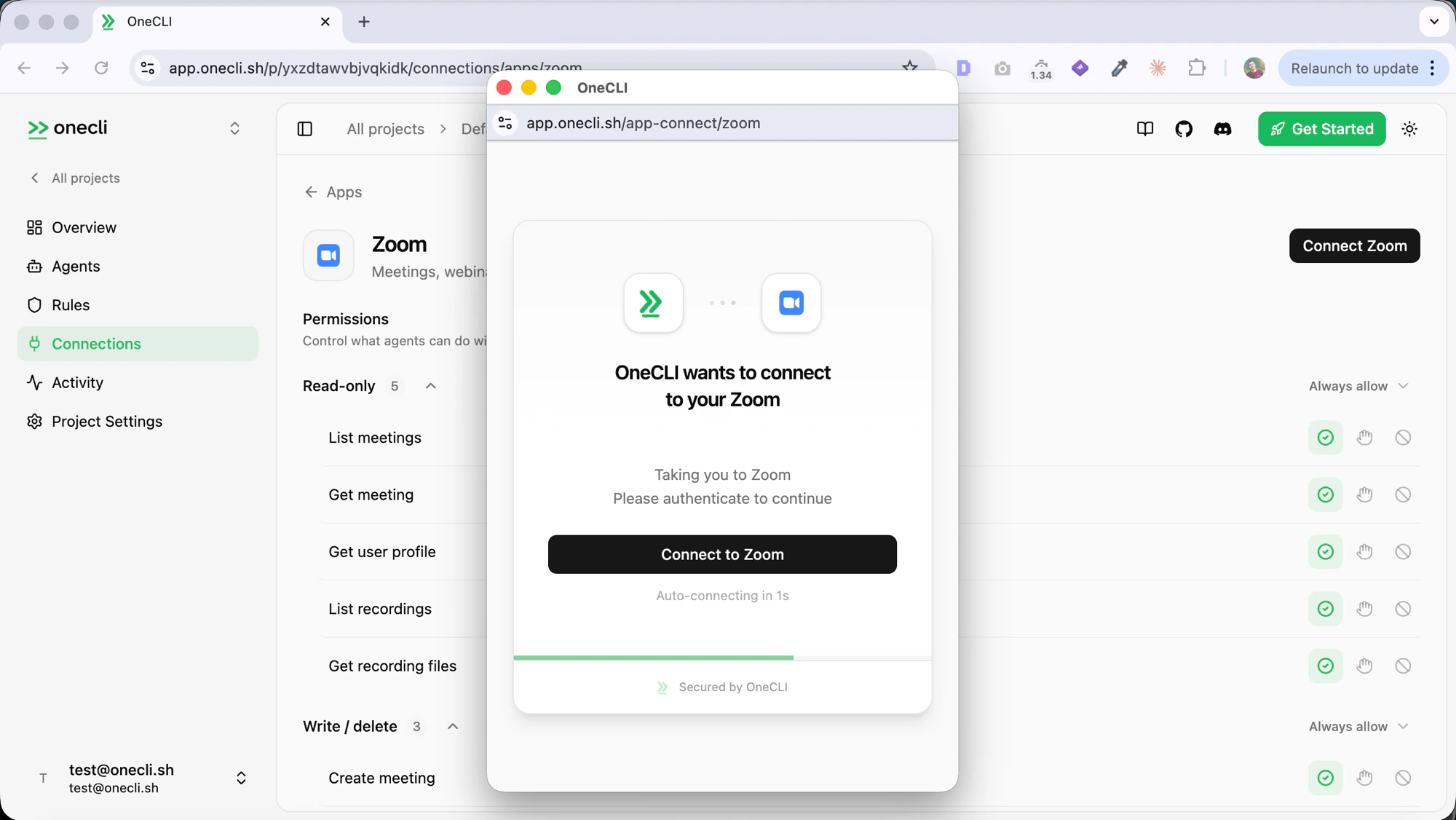
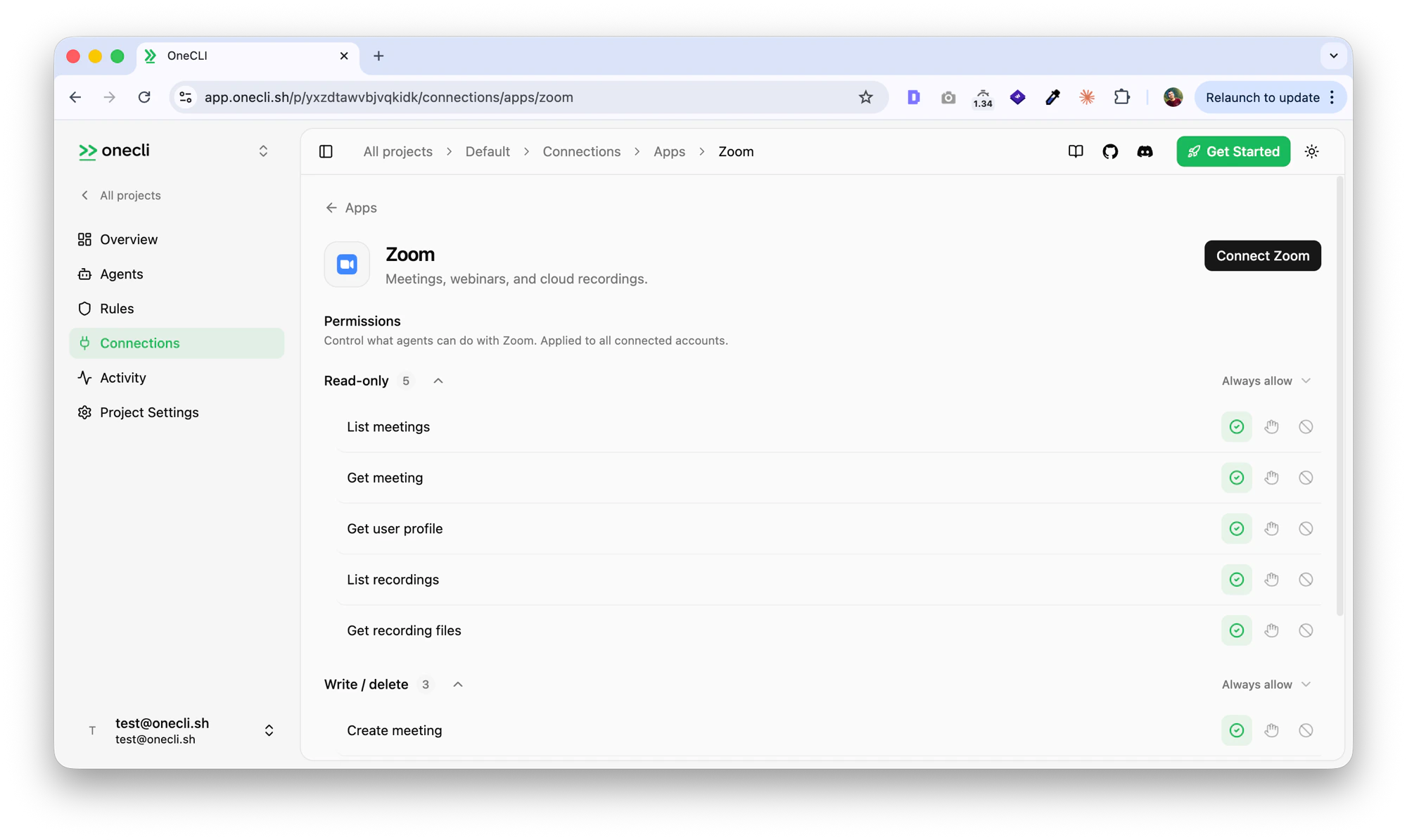 Click **Connect Zoom**. You'll be redirected to Zoom to authorize OneCLI. Review the requested permissions and click **Allow**.
 OneCLI requests read access to your meetings, recordings, and profile by default. Write access (create, update, delete meetings) is optional and only requested if your agent needs meeting management capabilities.
After authorization, you'll be redirected back to the OneCLI dashboard. The Zoom connection will show as **Connected** with your Zoom email address.
### Prerequisites
* A Zoom account (Free, Pro, or Business)
* An OneCLI account at [app.onecli.sh](https://app.onecli.sh)
### Troubleshooting
* **Authorization fails**: Ensure pop-ups are not blocked by your browser during the OAuth redirect.
* **Missing scopes**: If your agent can't perform certain actions, disconnect and reconnect Zoom to request the optional write scopes.
* **Token expired**: OneCLI automatically refreshes expired tokens. If you encounter persistent auth errors, disconnect and reconnect.
## Usage
### What agents can do
**Meetings (read)**
* List scheduled and past meetings for your account
* Get details for a specific meeting (topic, start time, duration, join URL, participants)
**Meetings (write, optional)**
* Schedule new meetings with topic, time, duration, and settings
* Update existing meetings (reschedule, change topic, modify settings)
* Delete meetings
**Cloud Recordings**
* List all cloud recordings for your account
* Access recording files for a specific meeting (video, audio, transcript)
**User Profile**
* View your Zoom profile (name, email, account type)
### Example use cases
* **Meeting prep agent**: Pulls your upcoming meetings and prepares agendas or briefing docs
* **Recording summarizer**: Accesses cloud recordings and generates meeting summaries
* **Scheduling assistant**: Creates Zoom meetings based on calendar availability
* **Meeting cleanup**: Identifies and removes outdated or cancelled meetings
### Activity log
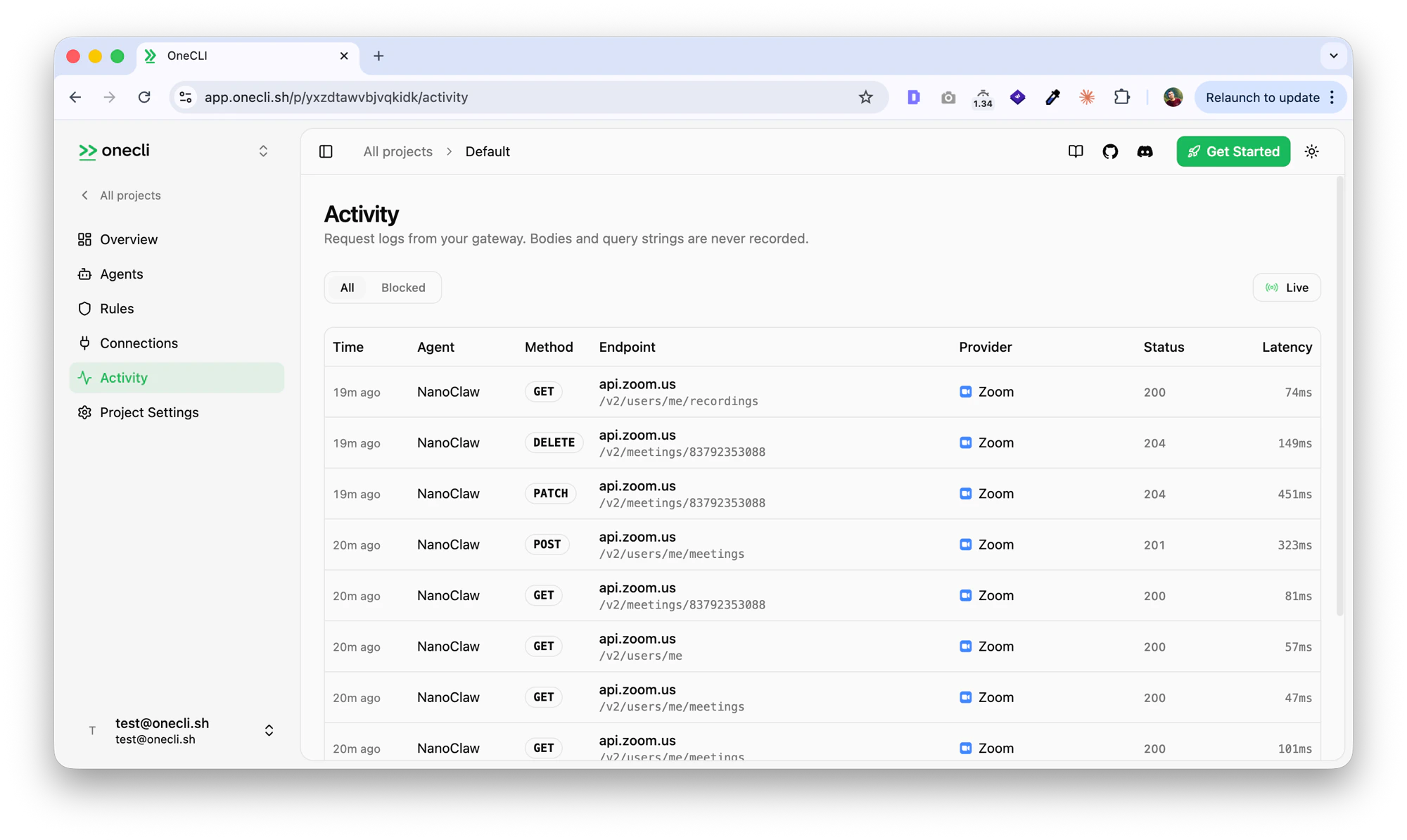
All Zoom API requests made by agents are logged in the **Activity** tab. You can see the method, endpoint, status, and latency for every request.
OneCLI requests read access to your meetings, recordings, and profile by default. Write access (create, update, delete meetings) is optional and only requested if your agent needs meeting management capabilities.
After authorization, you'll be redirected back to the OneCLI dashboard. The Zoom connection will show as **Connected** with your Zoom email address.
### Prerequisites
* A Zoom account (Free, Pro, or Business)
* An OneCLI account at [app.onecli.sh](https://app.onecli.sh)
### Troubleshooting
* **Authorization fails**: Ensure pop-ups are not blocked by your browser during the OAuth redirect.
* **Missing scopes**: If your agent can't perform certain actions, disconnect and reconnect Zoom to request the optional write scopes.
* **Token expired**: OneCLI automatically refreshes expired tokens. If you encounter persistent auth errors, disconnect and reconnect.
## Usage
### What agents can do
**Meetings (read)**
* List scheduled and past meetings for your account
* Get details for a specific meeting (topic, start time, duration, join URL, participants)
**Meetings (write, optional)**
* Schedule new meetings with topic, time, duration, and settings
* Update existing meetings (reschedule, change topic, modify settings)
* Delete meetings
**Cloud Recordings**
* List all cloud recordings for your account
* Access recording files for a specific meeting (video, audio, transcript)
**User Profile**
* View your Zoom profile (name, email, account type)
### Example use cases
* **Meeting prep agent**: Pulls your upcoming meetings and prepares agendas or briefing docs
* **Recording summarizer**: Accesses cloud recordings and generates meeting summaries
* **Scheduling assistant**: Creates Zoom meetings based on calendar availability
* **Meeting cleanup**: Identifies and removes outdated or cancelled meetings
### Activity log
All Zoom API requests made by agents are logged in the **Activity** tab. You can see the method, endpoint, status, and latency for every request.
 ### Controlling access with rules
Use OneCLI's [rules engine](/guides/rules) to limit what agents can do with your Zoom account. For example, you can allow read-only access so agents can view your meetings but not create or modify them, or restrict access to only listing recordings. Rules are evaluated before credential injection, so a blocked request never reaches the Zoom API.
## Removing the App
Open the OneCLI dashboard, navigate to **Connections** > **Zoom**, and click **Disconnect**. This revokes the stored OAuth token and removes the connection from your OneCLI account.
To fully revoke access, go to the [Zoom App Marketplace](https://marketplace.zoom.us/) > **Manage** > **Installed Apps**, find OneCLI, and click **Uninstall**. This ensures OneCLI can no longer access your Zoom account even if you reconnect later without re-authorizing.
### What happens when you disconnect
* OneCLI immediately deletes your stored OAuth tokens (access and refresh tokens)
* Any agents using the Zoom connection will receive authorization errors
* No Zoom data is retained by OneCLI after disconnection
* Your Zoom meetings, recordings, and account are not affected
## FAQ
OneCLI only stores your OAuth tokens (encrypted with AES-256) and basic profile metadata (name and email) used to display the connection status. No meeting content, recording data, or personal information is stored.
No. The integration works with Free, Pro, and Business Zoom accounts. Some features like cloud recordings may require a Zoom plan that supports them.
Yes. Use OneCLI's [rules engine](/guides/rules) to restrict agent permissions. For example, you can grant read-only access to meetings without allowing agents to create or delete them.
OneCLI automatically refreshes expired tokens using the stored refresh token. No action is needed on your part. If a refresh fails, disconnect and reconnect Zoom from the dashboard.
No. Disconnecting only removes the OAuth tokens stored in OneCLI. Your Zoom meetings, recordings, and account settings are not modified or deleted.
## Contact Support
If you run into issues with the Zoom integration:
* **Email**: [support@onecli.sh](mailto:support@onecli.sh)
* **Discord**: [discord.gg/PSztzsQB3g](https://discord.gg/PSztzsQB3g)
* **Response time**: We aim to respond within 24 hours on business days
### Controlling access with rules
Use OneCLI's [rules engine](/guides/rules) to limit what agents can do with your Zoom account. For example, you can allow read-only access so agents can view your meetings but not create or modify them, or restrict access to only listing recordings. Rules are evaluated before credential injection, so a blocked request never reaches the Zoom API.
## Removing the App
Open the OneCLI dashboard, navigate to **Connections** > **Zoom**, and click **Disconnect**. This revokes the stored OAuth token and removes the connection from your OneCLI account.
To fully revoke access, go to the [Zoom App Marketplace](https://marketplace.zoom.us/) > **Manage** > **Installed Apps**, find OneCLI, and click **Uninstall**. This ensures OneCLI can no longer access your Zoom account even if you reconnect later without re-authorizing.
### What happens when you disconnect
* OneCLI immediately deletes your stored OAuth tokens (access and refresh tokens)
* Any agents using the Zoom connection will receive authorization errors
* No Zoom data is retained by OneCLI after disconnection
* Your Zoom meetings, recordings, and account are not affected
## FAQ
OneCLI only stores your OAuth tokens (encrypted with AES-256) and basic profile metadata (name and email) used to display the connection status. No meeting content, recording data, or personal information is stored.
No. The integration works with Free, Pro, and Business Zoom accounts. Some features like cloud recordings may require a Zoom plan that supports them.
Yes. Use OneCLI's [rules engine](/guides/rules) to restrict agent permissions. For example, you can grant read-only access to meetings without allowing agents to create or delete them.
OneCLI automatically refreshes expired tokens using the stored refresh token. No action is needed on your part. If a refresh fails, disconnect and reconnect Zoom from the dashboard.
No. Disconnecting only removes the OAuth tokens stored in OneCLI. Your Zoom meetings, recordings, and account settings are not modified or deleted.
## Contact Support
If you run into issues with the Zoom integration:
* **Email**: [support@onecli.sh](mailto:support@onecli.sh)
* **Discord**: [discord.gg/PSztzsQB3g](https://discord.gg/PSztzsQB3g)
* **Response time**: We aim to respond within 24 hours on business days