> ## Documentation Index
> Fetch the complete documentation index at: https://onecli.sh/docs/llms.txt
> Use this file to discover all available pages before exploring further.
# Google Workspace Apps: OAuth Setup for Admins
> Set up one Google OAuth client for Gmail, Drive, Calendar, Docs, Sheets, and every other Google app in OneCLI. Enable the APIs, choose the audience, create the client, and connect.
One Google OAuth client covers **every Google app** in OneCLI: Gmail, Calendar, Drive, Docs, Sheets, Slides, Forms, Meet, Tasks, Contacts, Chat, Photos, Admin, Analytics, Search Console, Classroom, and YouTube. Set it up once.
On OneCLI Cloud, Google apps work out of the box. Follow this guide only if you want your own Google client, for example to show your company name on the consent screen or to keep tokens in your own Google Cloud project. Self-hosted instances need this guide unless `GOOGLE_CLIENT_ID` and `GOOGLE_CLIENT_SECRET` are set on the server.
## Before you start
* A Google account that can create projects in [Google Cloud console](https://console.cloud.google.com/). To keep sign-in limited to your company, use an account in your Google Workspace.
* A OneCLI **organization admin** account. Members can't change credentials.
Red numbers in the screenshots match the actions below each image.
## Set up your Google client
Open the credentials form for **any** Google app, for example Gmail:
* **For the whole organization:** **Global Connections → Apps → Gmail → Custom credentials**.
* **For one workspace only:** **Connections → Apps → Gmail → Custom credentials** in that workspace. This overrides the organization's client in that workspace.
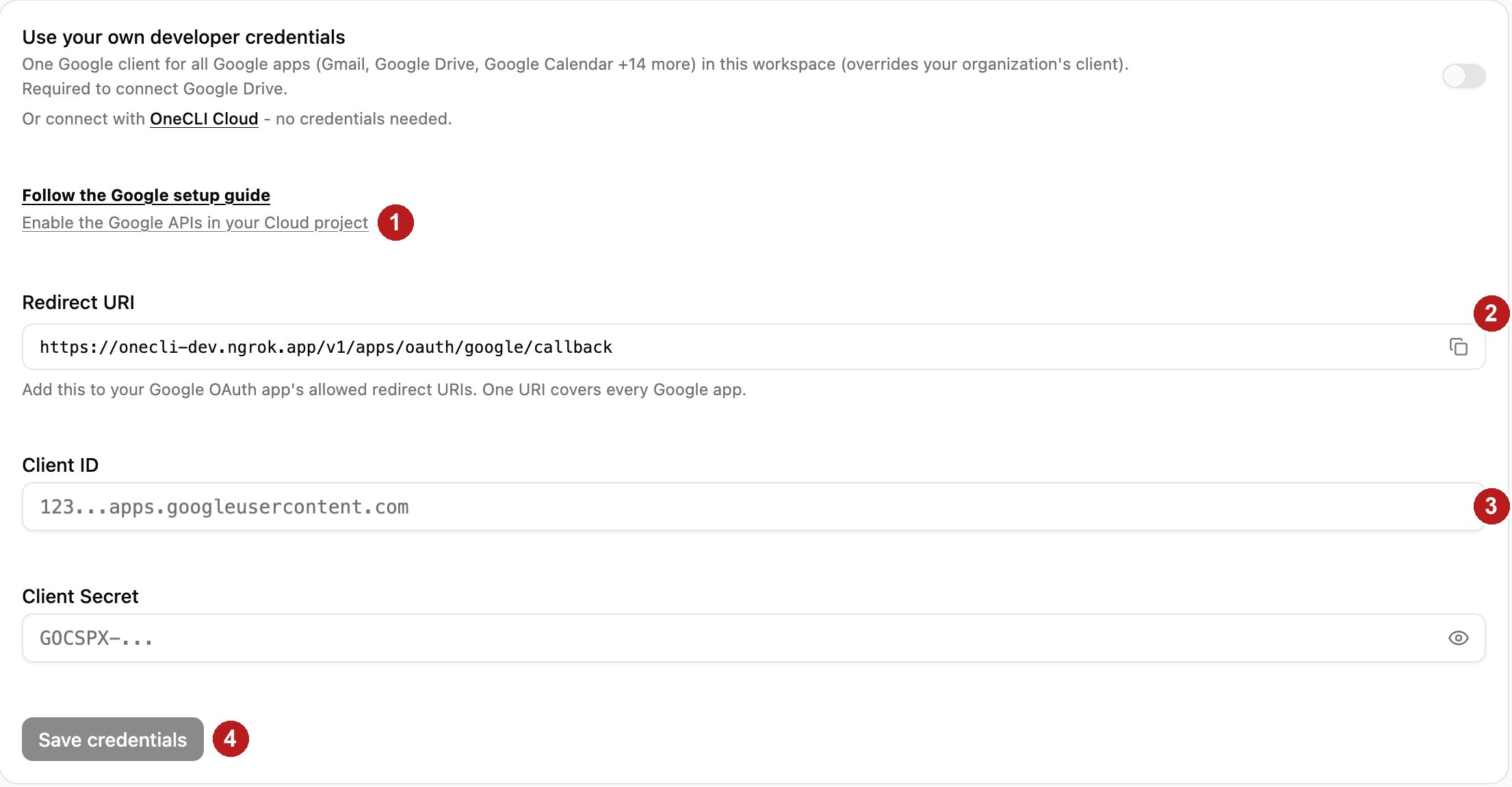 * **1.** Click **Enable the Google APIs in your Cloud project**. It opens the next step.
* **2.** Copy the **Redirect URI**. You'll paste it into Google in step 4.
* **3.** Leave this page open. You'll paste the **Client ID** and **Client Secret** here at the end.
* **4.** **Save credentials** comes last.
The link from OneCLI enables all the Google APIs at once. To open it directly: [enable the Google APIs](https://console.cloud.google.com/flows/enableapi?apiid=gmail.googleapis.com,admin.googleapis.com,analyticsdata.googleapis.com,calendar-json.googleapis.com,chat.googleapis.com,classroom.googleapis.com,people.googleapis.com,docs.googleapis.com,drive.googleapis.com,forms.googleapis.com,meet.googleapis.com,photoslibrary.googleapis.com,searchconsole.googleapis.com,sheets.googleapis.com,slides.googleapis.com,tasks.googleapis.com,youtube.googleapis.com).
* **1.** Click **Enable the Google APIs in your Cloud project**. It opens the next step.
* **2.** Copy the **Redirect URI**. You'll paste it into Google in step 4.
* **3.** Leave this page open. You'll paste the **Client ID** and **Client Secret** here at the end.
* **4.** **Save credentials** comes last.
The link from OneCLI enables all the Google APIs at once. To open it directly: [enable the Google APIs](https://console.cloud.google.com/flows/enableapi?apiid=gmail.googleapis.com,admin.googleapis.com,analyticsdata.googleapis.com,calendar-json.googleapis.com,chat.googleapis.com,classroom.googleapis.com,people.googleapis.com,docs.googleapis.com,drive.googleapis.com,forms.googleapis.com,meet.googleapis.com,photoslibrary.googleapis.com,searchconsole.googleapis.com,sheets.googleapis.com,slides.googleapis.com,tasks.googleapis.com,youtube.googleapis.com).
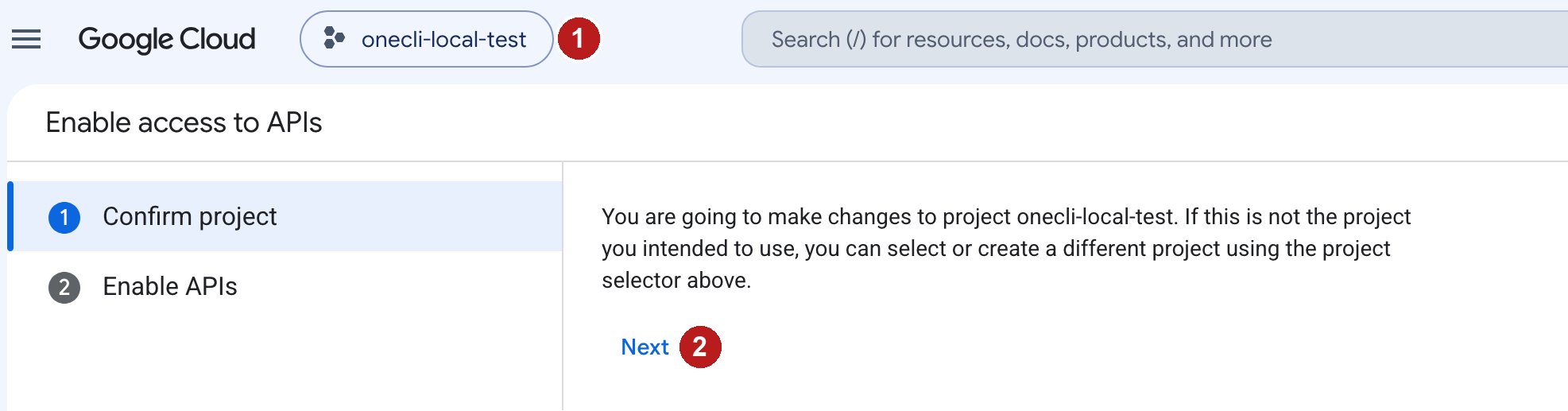 * **1.** Check the project. Pick or create the project for OneCLI here.
* **2.** Click **Next**, then **Enable**.
Don't skip this step. If an API isn't enabled, the app connects but every agent request fails with `SERVICE_DISABLED`.
Go to [Google Auth Platform → Audience](https://console.cloud.google.com/auth/audience). If Google asks you to set up Google Auth Platform first, click **Get started**, enter an app name such as `OneCLI` and your support email, then come back here.
* **1.** Check the project. Pick or create the project for OneCLI here.
* **2.** Click **Next**, then **Enable**.
Don't skip this step. If an API isn't enabled, the app connects but every agent request fails with `SERVICE_DISABLED`.
Go to [Google Auth Platform → Audience](https://console.cloud.google.com/auth/audience). If Google asks you to set up Google Auth Platform first, click **Get started**, enter an app name such as `OneCLI` and your support email, then come back here.
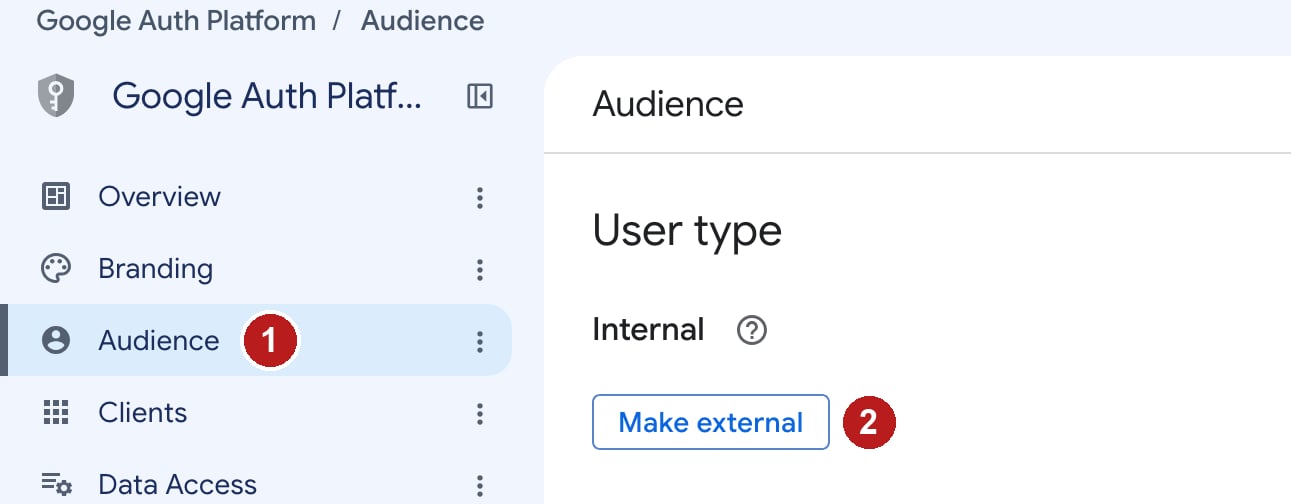 * **1.** Open **Audience**.
* **2.** Choose the user type:
| User type | Who can connect | Choose it when |
| - | - | - |
| **Internal** (recommended) | Only accounts in the Google Workspace that owns this project | Everyone connecting uses your company Google accounts |
| **External** | Accounts you add as **Test users** while in Testing | People sign in from another Workspace or personal Gmail |
For **External**, click **Make external**, keep **Testing**, and add every person who will connect under **Test users** (up to 100).
Go to [Google Auth Platform → Clients](https://console.cloud.google.com/auth/clients).
* **1.** Open **Audience**.
* **2.** Choose the user type:
| User type | Who can connect | Choose it when |
| - | - | - |
| **Internal** (recommended) | Only accounts in the Google Workspace that owns this project | Everyone connecting uses your company Google accounts |
| **External** | Accounts you add as **Test users** while in Testing | People sign in from another Workspace or personal Gmail |
For **External**, click **Make external**, keep **Testing**, and add every person who will connect under **Test users** (up to 100).
Go to [Google Auth Platform → Clients](https://console.cloud.google.com/auth/clients).
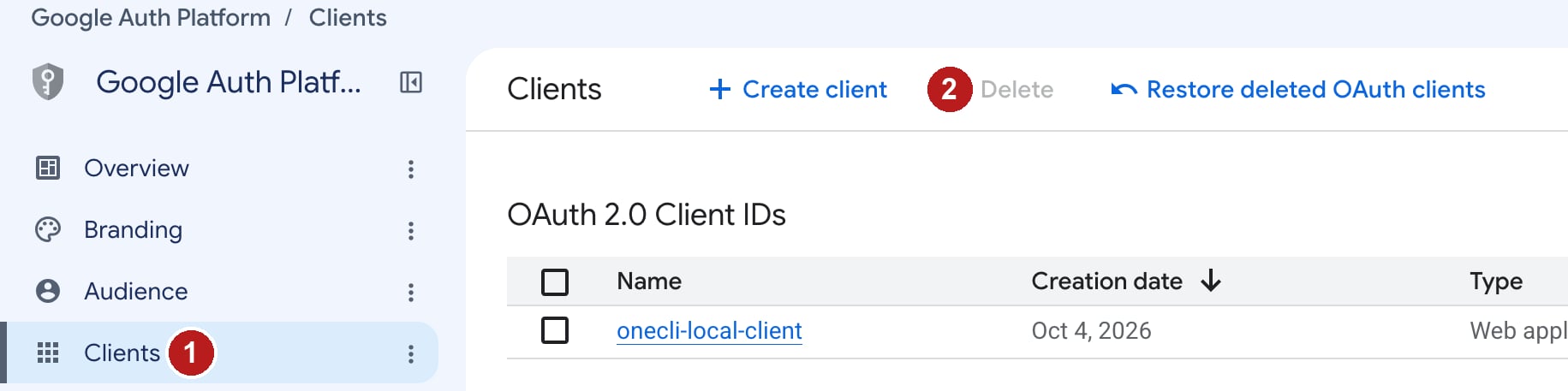 * **1.** Open **Clients**.
* **2.** Click **Create client**.
* **1.** Open **Clients**.
* **2.** Click **Create client**.
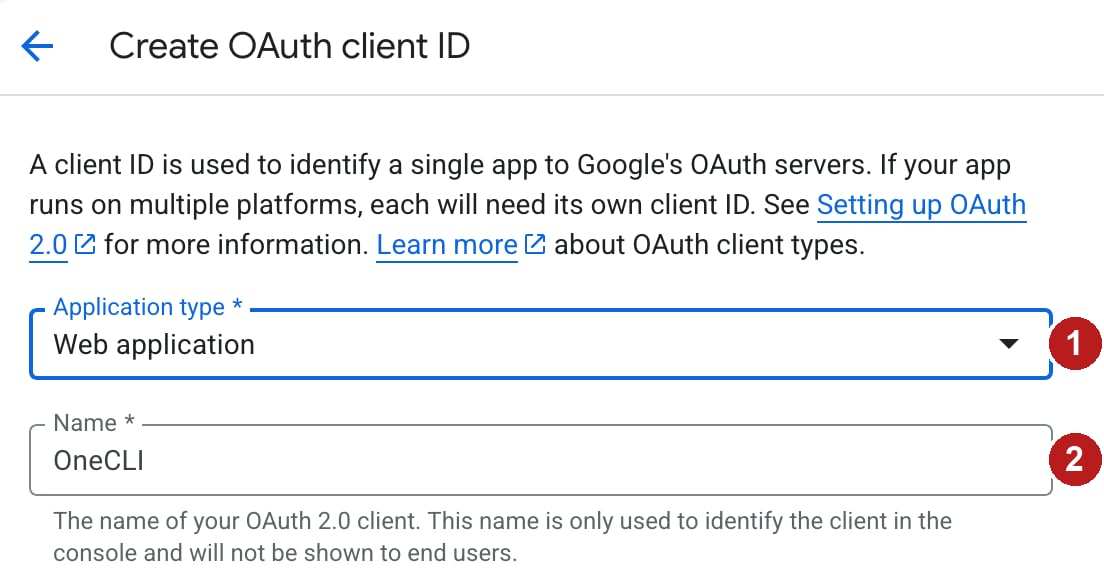 * **1.** Set **Application type** to **Web application**.
* **2.** Set **Name** to `OneCLI`.
* **1.** Set **Application type** to **Web application**.
* **2.** Set **Name** to `OneCLI`.
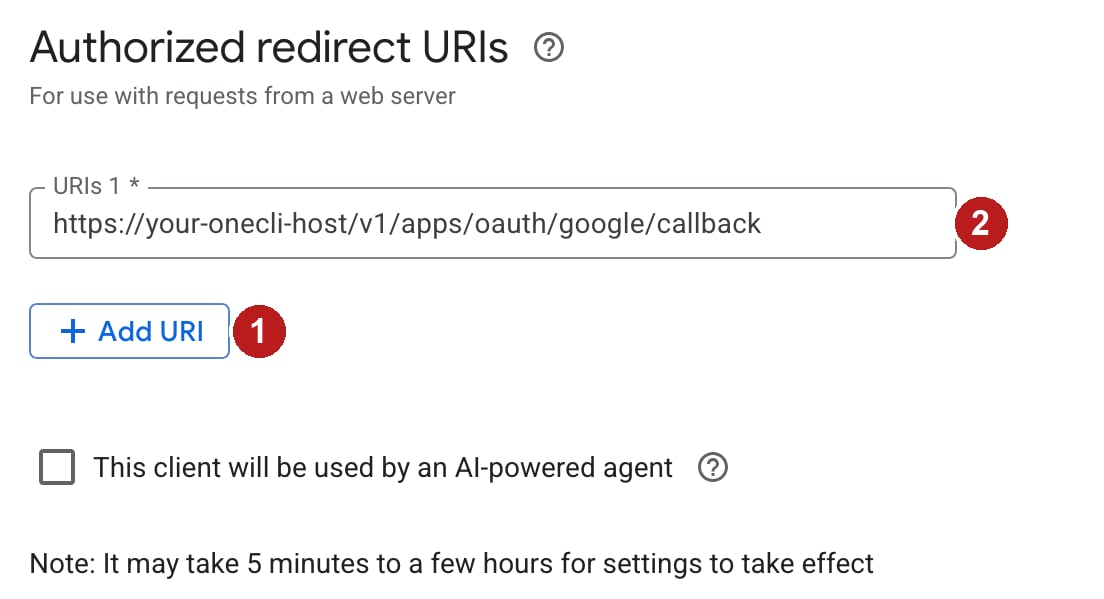 * **1.** Under **Authorized redirect URIs**, click **Add URI**.
* **2.** Paste the **Redirect URI** you copied from OneCLI. It ends in `/v1/apps/oauth/google/callback`. One URI covers every Google app. Google only accepts `https` URIs, except for `localhost`.
Leave **Authorized JavaScript origins** empty. Click **Create**, then copy the **Client ID** and **Client secret** from the dialog.
1. Back in OneCLI, paste the **Client ID** and **Client Secret**, then click **Save credentials**.
2. Open any Google app, for example **Google Drive**, and click **Connect**. You don't need to enter credentials again for other Google apps.
3. Sign in with Google and click **Allow**. With **External** in Testing, Google first shows **Google hasn't verified this app**. Click **Continue**.
4. Ask your agent for something simple, such as "List my 5 most recent Drive files."
**Setup complete.** Every Google app now uses your client, in every workspace you saved it for.
## Where credentials apply
| Saved in | Applies to |
| - | - |
| **Global Connections** (organization) | Every Google app in every workspace |
| A workspace's **Connections** | Every Google app in that workspace only. Overrides the organization's client. |
Removing a workspace's credentials returns it to the organization's client. Saving or removing credentials disconnects the Google accounts that used the previous client, so people need to reconnect. Your first organization save also disconnects accounts connected through OneCLI's built-in Google client.
## Troubleshooting
The app is **Internal** and the account signing in isn't in the Google Workspace that owns the project. Either sign in with an account from that Workspace, or switch the app to **External** and add the account as a test user (step 3).
The Redirect URI in Google doesn't exactly match OneCLI's. Copy it again from the OneCLI form and paste it into the client's **Authorized redirect URIs**. Check `https`, the host, and that it ends in `/v1/apps/oauth/google/callback`. Changes can take a few minutes.
The Google API for that app isn't enabled in this project. Repeat step 2 in the same project as the client, wait a minute, and retry. You don't need to reconnect.
The app is **External** in Testing and this account isn't a test user. Add it under **Audience → Test users**.
Your Google Workspace admin restricts third-party apps. In the [Google Admin console](https://admin.google.com/), go to **Security → Access and data control → API controls → Manage third-party app access**, and mark the OneCLI client as **Trusted** using its Client ID.
The Client ID or secret is wrong, or the client was deleted. Copy both again from **Clients** and save them in OneCLI.
Google expires refresh tokens after 7 days for **External** apps in **Testing**. Use **Internal**, or publish the app under **Audience → Publish app**. Publishing an app that uses Gmail or Drive scopes may require Google verification.
## Next steps
* [Grant the connection to an agent](/docs/guides/agent-access).
* [Add organization-wide rules](/docs/guides/rules).
* See what each app can do: [Gmail](/docs/integrations/gmail), [Google Calendar](/docs/integrations/google-calendar), [Google Drive](/docs/integrations/google-drive), and the other Google pages.
This documentation is built and hosted on [Mintlify](https://mintlify.com), a developer documentation platform.
* **1.** Under **Authorized redirect URIs**, click **Add URI**.
* **2.** Paste the **Redirect URI** you copied from OneCLI. It ends in `/v1/apps/oauth/google/callback`. One URI covers every Google app. Google only accepts `https` URIs, except for `localhost`.
Leave **Authorized JavaScript origins** empty. Click **Create**, then copy the **Client ID** and **Client secret** from the dialog.
1. Back in OneCLI, paste the **Client ID** and **Client Secret**, then click **Save credentials**.
2. Open any Google app, for example **Google Drive**, and click **Connect**. You don't need to enter credentials again for other Google apps.
3. Sign in with Google and click **Allow**. With **External** in Testing, Google first shows **Google hasn't verified this app**. Click **Continue**.
4. Ask your agent for something simple, such as "List my 5 most recent Drive files."
**Setup complete.** Every Google app now uses your client, in every workspace you saved it for.
## Where credentials apply
| Saved in | Applies to |
| - | - |
| **Global Connections** (organization) | Every Google app in every workspace |
| A workspace's **Connections** | Every Google app in that workspace only. Overrides the organization's client. |
Removing a workspace's credentials returns it to the organization's client. Saving or removing credentials disconnects the Google accounts that used the previous client, so people need to reconnect. Your first organization save also disconnects accounts connected through OneCLI's built-in Google client.
## Troubleshooting
The app is **Internal** and the account signing in isn't in the Google Workspace that owns the project. Either sign in with an account from that Workspace, or switch the app to **External** and add the account as a test user (step 3).
The Redirect URI in Google doesn't exactly match OneCLI's. Copy it again from the OneCLI form and paste it into the client's **Authorized redirect URIs**. Check `https`, the host, and that it ends in `/v1/apps/oauth/google/callback`. Changes can take a few minutes.
The Google API for that app isn't enabled in this project. Repeat step 2 in the same project as the client, wait a minute, and retry. You don't need to reconnect.
The app is **External** in Testing and this account isn't a test user. Add it under **Audience → Test users**.
Your Google Workspace admin restricts third-party apps. In the [Google Admin console](https://admin.google.com/), go to **Security → Access and data control → API controls → Manage third-party app access**, and mark the OneCLI client as **Trusted** using its Client ID.
The Client ID or secret is wrong, or the client was deleted. Copy both again from **Clients** and save them in OneCLI.
Google expires refresh tokens after 7 days for **External** apps in **Testing**. Use **Internal**, or publish the app under **Audience → Publish app**. Publishing an app that uses Gmail or Drive scopes may require Google verification.
## Next steps
* [Grant the connection to an agent](/docs/guides/agent-access).
* [Add organization-wide rules](/docs/guides/rules).
* See what each app can do: [Gmail](/docs/integrations/gmail), [Google Calendar](/docs/integrations/google-calendar), [Google Drive](/docs/integrations/google-drive), and the other Google pages.
This documentation is built and hosted on [Mintlify](https://mintlify.com), a developer documentation platform.