> ## Documentation Index
> Fetch the complete documentation index at: https://onecli.sh/docs/llms.txt
> Use this file to discover all available pages before exploring further.
# GitHub for AI Agents: Repos, PRs & Actions
> Connect agents to GitHub via OAuth or a GitHub App. The gateway injects tokens into API calls and git-over-HTTPS, with per-action allow/ask/block controls.
## Overview
OneCLI connects AI agents to GitHub so they can read and write code, open pull requests, manage issues, and trigger workflows. The gateway injects GitHub credentials into API requests automatically.
OneCLI supports two ways to connect GitHub:
| Method | Access scope | Best for |
| -------------- | ----------------------------- | ------------------------- |
| **OAuth** | All repos the user can access | Personal use, quick setup |
| **GitHub App** | Only selected repos | Teams, organizations |
## Quick example
An agent calling the GitHub API through the gateway, with no token management needed:
```bash theme={null}
# List your repositories
curl -s "https://api.github.com/user/repos?per_page=5&sort=updated" | jq '.[].full_name'
# Create an issue
curl -s -X POST "https://api.github.com/repos/myorg/myrepo/issues" \
-H "Content-Type: application/json" \
-d '{"title": "Bug: login page timeout", "body": "The login page times out after 30s on slow connections."}'
# Open a pull request
curl -s -X POST "https://api.github.com/repos/myorg/myrepo/pulls" \
-H "Content-Type: application/json" \
-d '{"title": "Fix login timeout", "head": "fix/login-timeout", "base": "main"}'
# Trigger a workflow
curl -s -X POST "https://api.github.com/repos/myorg/myrepo/actions/workflows/deploy.yml/dispatches" \
-H "Content-Type: application/json" \
-d '{"ref": "main"}'
```
The agent makes standard GitHub API calls. The gateway injects the right authentication header automatically: `Bearer` token for API calls, Basic auth for git-over-HTTPS.
## OAuth
Connect your personal GitHub account. The agent gets access to all repositories you can see.
### Setup
Open the OneCLI dashboard and navigate to **Connections** > **GitHub**.
Click **Connect GitHub**. You'll be redirected to GitHub to authorize OneCLI. Review the permissions and click **Authorize**.
 ### Permissions
The OAuth connection requests these scopes:
| Scope | Name | Access |
| --------------- | ------------- | -------------------------------- |
| `repo` | Repositories | Read & write (code, issues, PRs) |
| `user` | Profile | Read (email, name, avatar) |
| `gist` | Gists | Read & write |
| `notifications` | Notifications | Read |
| `project` | Projects | Read & write |
| `codespace` | Codespaces | Read & write |
| `workflow` | Actions | Read & write (workflow files) |
### How it works
1. You authorize OneCLI via GitHub's OAuth flow
2. OneCLI receives a long-lived access token and encrypts it
3. When an agent sends a request to `api.github.com`, the gateway injects the token as a `Bearer` header
4. For git operations over HTTPS (`github.com`), the gateway injects Basic auth credentials
### Use cases
* Coding agents creating branches, committing code, and opening pull requests
* Agents reviewing PRs and leaving comments
* Triggering GitHub Actions workflows from an agent
* Reading repository contents during code generation
### Limitations
* The token has access to all repositories you can see, not just selected ones
* No organizational visibility or approval flow
* Token is long-lived until you revoke the connection
## GitHub App
For teams and organizations. A GitHub App gives you repo-level access control and organizational visibility. Org admins can see which repos are connected and approve or revoke access at any time.
### Setup
Open the OneCLI dashboard and navigate to **Connections** > **GitHub App**.
If you're using OneCLI Cloud, skip this step. Platform credentials are pre-configured.
For self-hosted deployments, [create a GitHub App](https://docs.github.com/en/apps/creating-github-apps/registering-a-github-app/registering-a-github-app) and enter your **App ID**, **App Slug**, and **Private Key**.
Click **Connect GitHub App**. You'll be redirected to GitHub where you can:
1. Select the organization or personal account
2. Choose **All repositories** or **Only select repositories**
3. Review the permissions
Click **Install** to complete the connection.
### Permissions
The GitHub App requests only the permissions your agents need:
| Permission | Access | Description |
| --------------- | ------------ | ------------------------------------ |
| Contents | Read & write | Code, commits, and branches |
| Pull requests | Read & write | Create, review, and merge PRs |
| Issues | Read & write | Create and manage issues |
| Actions | Read & write | View runs and trigger workflows |
| Checks | Read & write | Read CI results, create check runs |
| Commit statuses | Read & write | Read and set status checks |
| Discussions | Read & write | Read and participate in discussions |
| Projects | Read & write | Manage project boards |
| Metadata | Read-only | Repository metadata (always granted) |
### How it works
1. You install the GitHub App on your organization or account and select which repositories it can access
2. OneCLI receives the app's private key and installation ID
3. The gateway signs a short-lived JWT and exchanges it for an installation access token (1hr TTL)
4. The token is injected into API requests and automatically refreshed when it expires
### Use cases
* Organizations giving agents access to specific repos without exposing the full account
* Teams where admins need visibility into which repos agents can access
* Production deployments where token rotation should be automatic
* Compliance environments where long-lived tokens are not acceptable
### Managing access
After connecting, you can change which repositories the app can access:
1. Go to **Connections** > **GitHub App** in the OneCLI dashboard
2. Click **Manage** on the connection
3. You'll be taken to GitHub's installation settings where you can add or remove repositories
## Comparison
| | OAuth | GitHub App |
| ------------------ | -------------------------- | -------------------------- |
| **Repo access** | All repos the user can see | Only selected repos |
| **Token lifetime** | Long-lived | 1 hour (auto-refreshed) |
| **Org visibility** | Not visible to admins | Visible to org admins |
| **Org approval** | Not required | Required |
| **Setup** | One-click OAuth | Install app + select repos |
| **Best for** | Personal, quick start | Teams, production |
## Per-action permissions
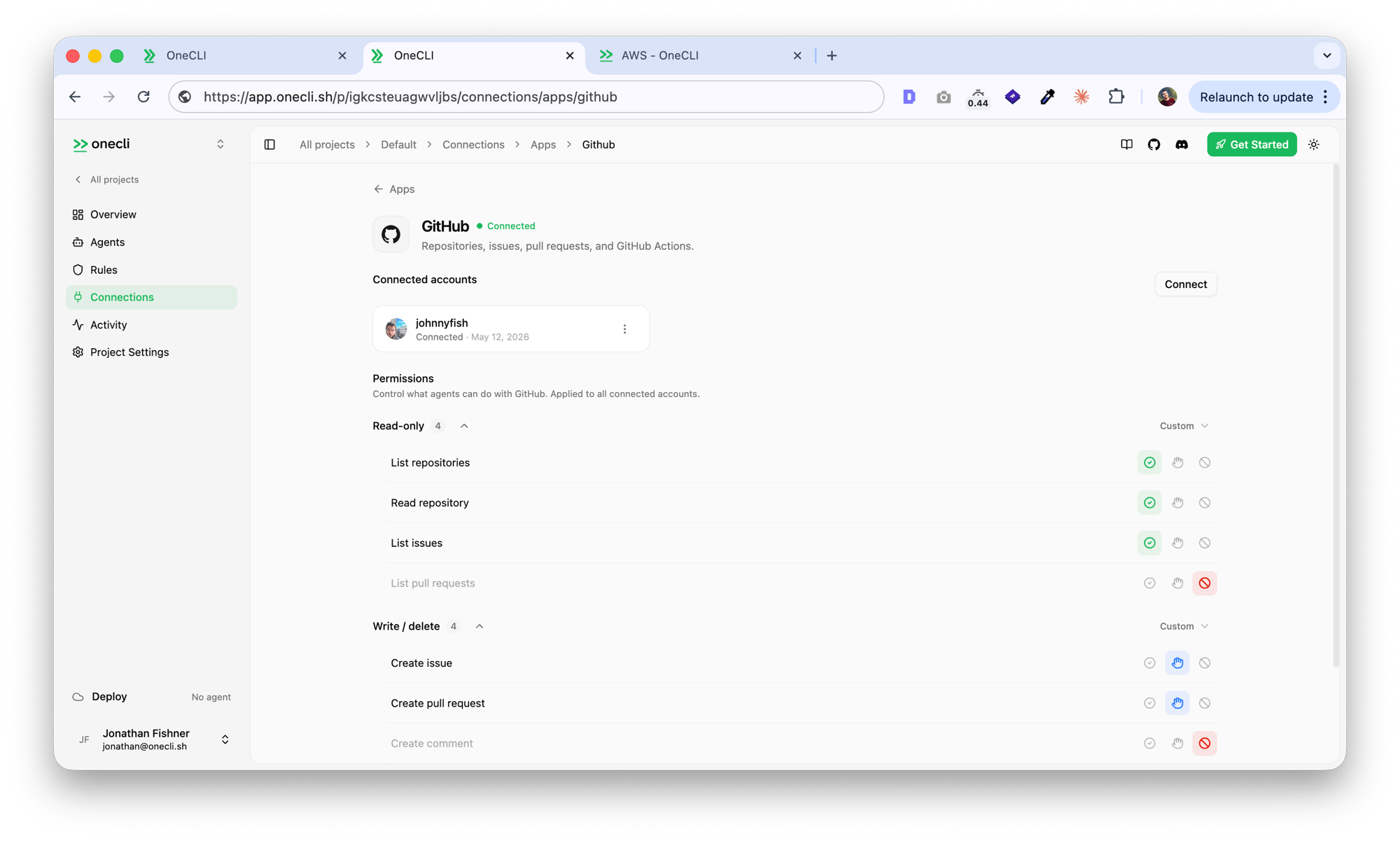
Once connected, the dashboard shows a permissions panel where you control what agents can do with GitHub. Each action has three modes: **Allow** (green), **Ask** (yellow, requires human approval), and **Block** (red, request is rejected).
**Read-only actions:**
| Action | Description |
| ------------------ | ----------------------------------- |
| List repositories | Browse repos the account can access |
| Read repository | Read code, commits, branches |
| List issues | View issues on a repo |
| List pull requests | View open/closed PRs |
**Write / delete actions:**
| Action | Description |
| ------------------- | ----------------------------- |
| Create issue | Open new issues |
| Create pull request | Open PRs against a repo |
| Create comment | Comment on issues and PRs |
| Delete / close | Close issues, delete branches |
Use the **Read-only** preset to allow all read actions and block writes, or switch to **Custom** to configure each action individually.
## Controlling access
Both connection methods are per agent: [grant](/docs/guides/agent-access) the connection to each agent that needs it, choosing per tool what runs freely, what needs human approval, and what stays blocked — a read-only agent is a single grant. Organization [rules](/docs/guides/rules) add guardrails on top:
* Rate limit API calls to stay within GitHub's rate limits
* Require manual approval for destructive operations (e.g., deleting branches)
* Scope a connection to specific repositories with a session policy
Everything is checked before credential injection, so a blocked request never touches your GitHub token.
### Permissions
The OAuth connection requests these scopes:
| Scope | Name | Access |
| --------------- | ------------- | -------------------------------- |
| `repo` | Repositories | Read & write (code, issues, PRs) |
| `user` | Profile | Read (email, name, avatar) |
| `gist` | Gists | Read & write |
| `notifications` | Notifications | Read |
| `project` | Projects | Read & write |
| `codespace` | Codespaces | Read & write |
| `workflow` | Actions | Read & write (workflow files) |
### How it works
1. You authorize OneCLI via GitHub's OAuth flow
2. OneCLI receives a long-lived access token and encrypts it
3. When an agent sends a request to `api.github.com`, the gateway injects the token as a `Bearer` header
4. For git operations over HTTPS (`github.com`), the gateway injects Basic auth credentials
### Use cases
* Coding agents creating branches, committing code, and opening pull requests
* Agents reviewing PRs and leaving comments
* Triggering GitHub Actions workflows from an agent
* Reading repository contents during code generation
### Limitations
* The token has access to all repositories you can see, not just selected ones
* No organizational visibility or approval flow
* Token is long-lived until you revoke the connection
## GitHub App
For teams and organizations. A GitHub App gives you repo-level access control and organizational visibility. Org admins can see which repos are connected and approve or revoke access at any time.
### Setup
Open the OneCLI dashboard and navigate to **Connections** > **GitHub App**.
If you're using OneCLI Cloud, skip this step. Platform credentials are pre-configured.
For self-hosted deployments, [create a GitHub App](https://docs.github.com/en/apps/creating-github-apps/registering-a-github-app/registering-a-github-app) and enter your **App ID**, **App Slug**, and **Private Key**.
Click **Connect GitHub App**. You'll be redirected to GitHub where you can:
1. Select the organization or personal account
2. Choose **All repositories** or **Only select repositories**
3. Review the permissions
Click **Install** to complete the connection.
### Permissions
The GitHub App requests only the permissions your agents need:
| Permission | Access | Description |
| --------------- | ------------ | ------------------------------------ |
| Contents | Read & write | Code, commits, and branches |
| Pull requests | Read & write | Create, review, and merge PRs |
| Issues | Read & write | Create and manage issues |
| Actions | Read & write | View runs and trigger workflows |
| Checks | Read & write | Read CI results, create check runs |
| Commit statuses | Read & write | Read and set status checks |
| Discussions | Read & write | Read and participate in discussions |
| Projects | Read & write | Manage project boards |
| Metadata | Read-only | Repository metadata (always granted) |
### How it works
1. You install the GitHub App on your organization or account and select which repositories it can access
2. OneCLI receives the app's private key and installation ID
3. The gateway signs a short-lived JWT and exchanges it for an installation access token (1hr TTL)
4. The token is injected into API requests and automatically refreshed when it expires
### Use cases
* Organizations giving agents access to specific repos without exposing the full account
* Teams where admins need visibility into which repos agents can access
* Production deployments where token rotation should be automatic
* Compliance environments where long-lived tokens are not acceptable
### Managing access
After connecting, you can change which repositories the app can access:
1. Go to **Connections** > **GitHub App** in the OneCLI dashboard
2. Click **Manage** on the connection
3. You'll be taken to GitHub's installation settings where you can add or remove repositories
## Comparison
| | OAuth | GitHub App |
| ------------------ | -------------------------- | -------------------------- |
| **Repo access** | All repos the user can see | Only selected repos |
| **Token lifetime** | Long-lived | 1 hour (auto-refreshed) |
| **Org visibility** | Not visible to admins | Visible to org admins |
| **Org approval** | Not required | Required |
| **Setup** | One-click OAuth | Install app + select repos |
| **Best for** | Personal, quick start | Teams, production |
## Per-action permissions
Once connected, the dashboard shows a permissions panel where you control what agents can do with GitHub. Each action has three modes: **Allow** (green), **Ask** (yellow, requires human approval), and **Block** (red, request is rejected).
**Read-only actions:**
| Action | Description |
| ------------------ | ----------------------------------- |
| List repositories | Browse repos the account can access |
| Read repository | Read code, commits, branches |
| List issues | View issues on a repo |
| List pull requests | View open/closed PRs |
**Write / delete actions:**
| Action | Description |
| ------------------- | ----------------------------- |
| Create issue | Open new issues |
| Create pull request | Open PRs against a repo |
| Create comment | Comment on issues and PRs |
| Delete / close | Close issues, delete branches |
Use the **Read-only** preset to allow all read actions and block writes, or switch to **Custom** to configure each action individually.
## Controlling access
Both connection methods are per agent: [grant](/docs/guides/agent-access) the connection to each agent that needs it, choosing per tool what runs freely, what needs human approval, and what stays blocked — a read-only agent is a single grant. Organization [rules](/docs/guides/rules) add guardrails on top:
* Rate limit API calls to stay within GitHub's rate limits
* Require manual approval for destructive operations (e.g., deleting branches)
* Scope a connection to specific repositories with a session policy
Everything is checked before credential injection, so a blocked request never touches your GitHub token.