> ## Documentation Index
> Fetch the complete documentation index at: https://onecli.sh/docs/llms.txt
> Use this file to discover all available pages before exploring further.
# Datadog Integration: Monitoring & Logs for Agents
> Let agents query Datadog metrics, check monitor status, and read incident timelines. API keys are injected by the gateway.
Datadog is available on the Cloud plan only.
## Overview
OneCLI connects AI agents to Datadog using an API key and application key. Agents can query metrics, list monitors, check incident status, and view dashboard data. The gateway injects both keys into requests to the Datadog API automatically.
This is useful for on-call agents that need to investigate incidents, coding agents that check deployment metrics, or reporting agents that pull monitoring data.
## How it works
OneCLI is two things in one: a **credential vault** and a **request gateway**.
When an agent makes a request to Datadog, it flows through OneCLI's gateway. At request time, two things happen:
1. **Secret injection**: OneCLI injects the API key and application key into the outgoing request. The agent itself never sees the raw credentials.
2. **Request inspection**: OneCLI evaluates the request against your [rules](/docs/guides/rules) before it leaves. If the request violates a policy (e.g., an agent tries to send a sensitive identifier to Datadog, or attempts a write operation you haven't allowed), OneCLI blocks it. The request never reaches Datadog.
This means OneCLI protects more than just the API key. It controls what data the agent can read and write through the Datadog API.
### Direct API, not MCP
The Datadog integration goes through the Datadog API directly, using [Datadog's agent skills](https://github.com/datadog-labs/agent-skills). There is no MCP server in the middle. Your agent calls the Datadog API, and OneCLI's gateway intercepts the request, applies your rules, injects the credentials, and forwards it. This gives you full visibility and control over every request.
For a deeper look at the gateway architecture, see [How it works](/docs/how-it-works#architecture-overview).
## Prerequisites
Before connecting Datadog to OneCLI, you need three things from your Datadog account:
| Credential | What it is | Where to find it |
| ------------------- | --------------------------------------------------------------------------- | ------------------------------------------------------------------------------ |
| **API Key** | Authenticates requests to the Datadog API | **Organization Settings** > **API Keys** |
| **Application Key** | Scopes access to specific Datadog features | **Organization Settings** > **Application Keys** |
| **Datadog Site** | The regional site for your account (e.g., `us1`, `us3`, `us5`, `eu`, `ap1`) | Check your browser URL bar; the subdomain before `.datadoghq.com` is your site |
### Getting your API key
1. Log in to [Datadog](https://app.datadoghq.com).
2. Go to **Organization Settings** > **API Keys** (or navigate to `https://app.datadoghq.com/organization-settings/api-keys`).
3. Click **+ New Key**, give it a name like `OneCLI`, and click **Create Key**.
4. Copy the key immediately. Datadog only shows it once.
### Getting your application key
1. In Datadog, go to **Organization Settings** > **Application Keys** (or navigate to `https://app.datadoghq.com/organization-settings/application-keys`).
2. Click **+ New Key**, name it `OneCLI`, and click **Create Key**.
3. Copy the key immediately.
Create dedicated keys for OneCLI rather than reusing existing ones. This makes it easy to rotate or revoke access later without affecting other integrations.
### Finding your Datadog site
Your Datadog site depends on the region you selected when you created your account. Check the URL you use to log in:
| Login URL | Site value |
| ------------------- | ---------- |
| `app.datadoghq.com` | `us1` |
| `us3.datadoghq.com` | `us3` |
| `us5.datadoghq.com` | `us5` |
| `app.datadoghq.eu` | `eu` |
| `ap1.datadoghq.com` | `ap1` |
## Setup
Open the OneCLI dashboard and navigate to **Connections** > **Datadog**.
Click **Connect Datadog**. In the connection dialog, enter your **Application Key**, **API Key**, and **Datadog Site**, then click **Connect Datadog**.
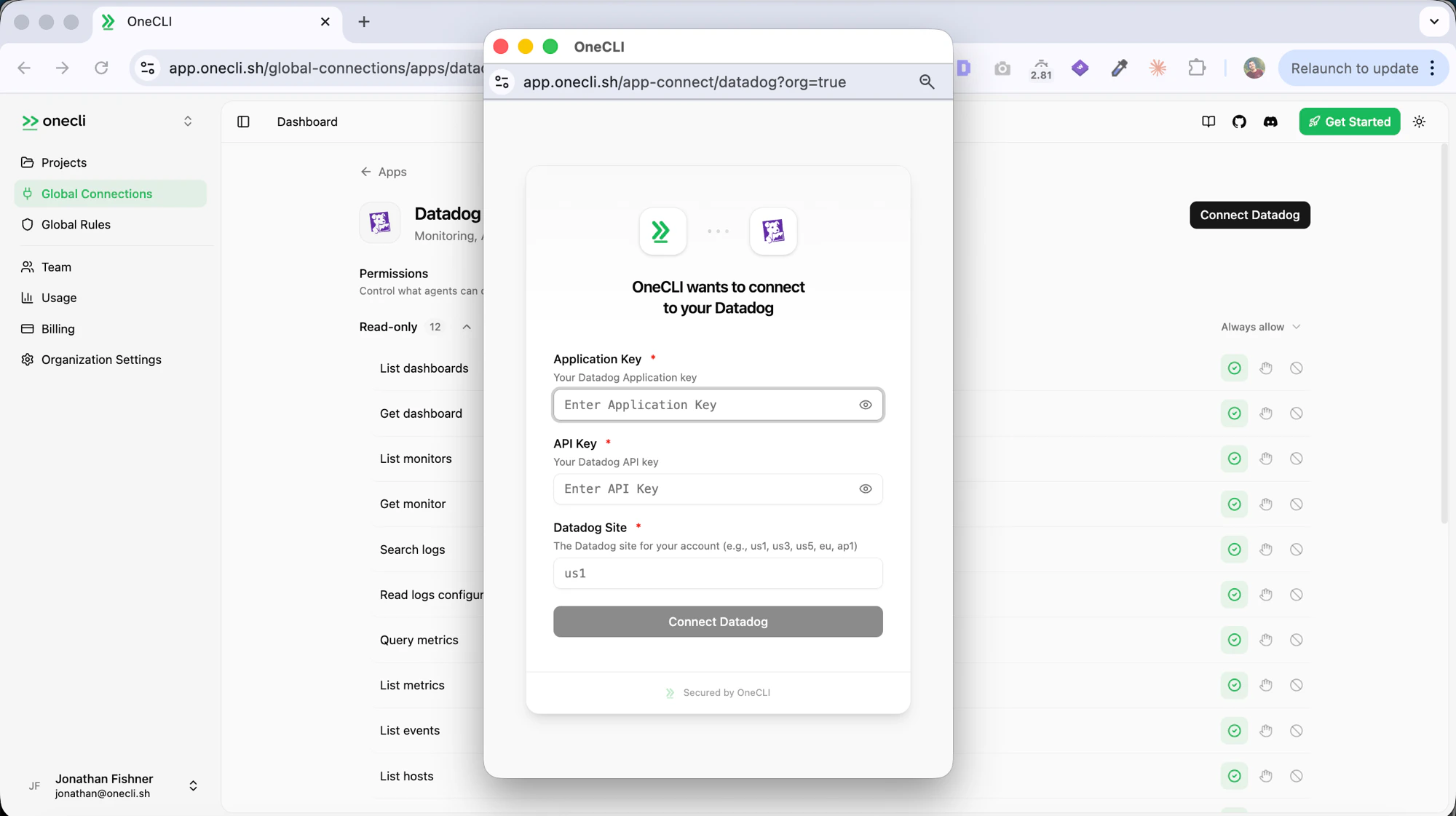
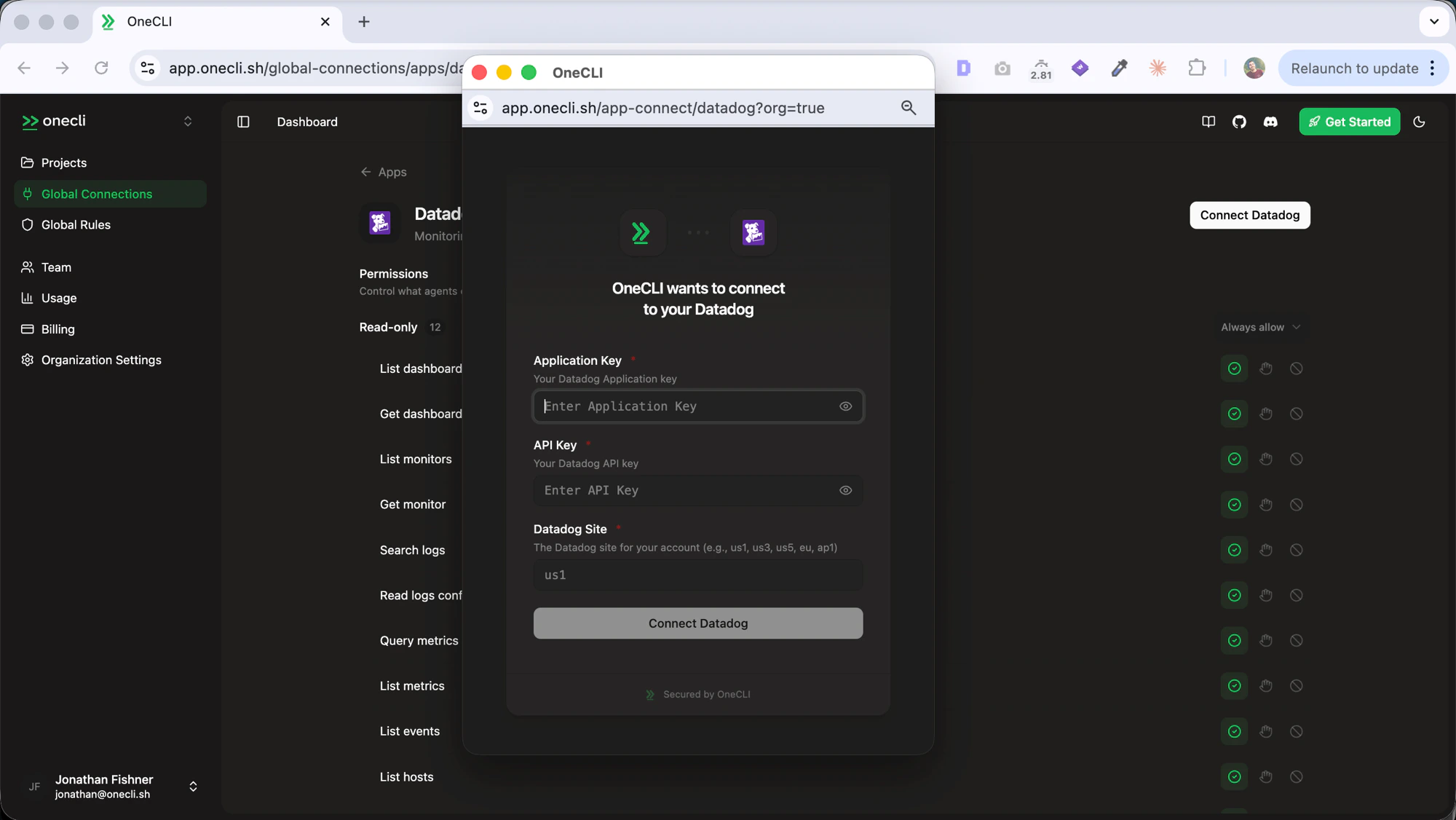 After connecting, the Datadog connection will show as **Connected** in your dashboard. OneCLI stores your keys encrypted and injects them into agent requests through the gateway. Your keys are never exposed to the agent itself.
## What agents can do
* Query time-series metrics with custom queries and time ranges
* List monitors and their current statuses (OK, Alert, Warn, No Data)
* Get details for a specific monitor, including recent state changes
* List active incidents and their severity, timeline, and postmortem status
* Query dashboard widget data
* Search and read log entries
* List hosts and their tags
* Query infrastructure metrics (CPU, memory, disk, network)
* Check SLO (Service Level Objective) status and error budgets
* Read and create events
## Controlling access
Access is per agent: [grant](/docs/guides/agent-access) the connection to each agent that needs it, choosing per tool what runs freely, what needs human approval, and what stays blocked — a read-only agent is a single grant. Organization [rules](/docs/guides/rules) add guardrails on top, like rate limits and blanket blocks. Everything is checked before credential injection, so a blocked request never reaches Datadog.
After connecting, the Datadog connection will show as **Connected** in your dashboard. OneCLI stores your keys encrypted and injects them into agent requests through the gateway. Your keys are never exposed to the agent itself.
## What agents can do
* Query time-series metrics with custom queries and time ranges
* List monitors and their current statuses (OK, Alert, Warn, No Data)
* Get details for a specific monitor, including recent state changes
* List active incidents and their severity, timeline, and postmortem status
* Query dashboard widget data
* Search and read log entries
* List hosts and their tags
* Query infrastructure metrics (CPU, memory, disk, network)
* Check SLO (Service Level Objective) status and error budgets
* Read and create events
## Controlling access
Access is per agent: [grant](/docs/guides/agent-access) the connection to each agent that needs it, choosing per tool what runs freely, what needs human approval, and what stays blocked — a read-only agent is a single grant. Organization [rules](/docs/guides/rules) add guardrails on top, like rate limits and blanket blocks. Everything is checked before credential injection, so a blocked request never reaches Datadog.