> ## Documentation Index
> Fetch the complete documentation index at: https://onecli.sh/docs/llms.txt
> Use this file to discover all available pages before exploring further.
# User Provisioning: Add Team Members Programmatically
> Add team members to OneCLI with pre-configured roles, API keys, and project access. Supports programmatic provisioning via the API.
User provisioning is a **cloud-only** feature available on all plans at [app.onecli.sh](https://app.onecli.sh).
User provisioning lets organization admins pre-create user accounts before the user signs up. Each provisioned user gets a project, API key, and a claim link. The API key works immediately, and the user can claim the account later.
## How it works
1. An admin provisions a new user (via the dashboard or SDK)
2. OneCLI creates a placeholder user, project, API key, and default agent
3. The admin receives a **claim link** and **API key**
4. The API key is usable immediately, so agents can start making requests
5. When the user visits the claim link, they sign up and the account is linked to their identity
6. Unclaimed provisions expire after **7 days** and are automatically cleaned up
## Provisioning from the dashboard
1. Go to **Team** in the sidebar
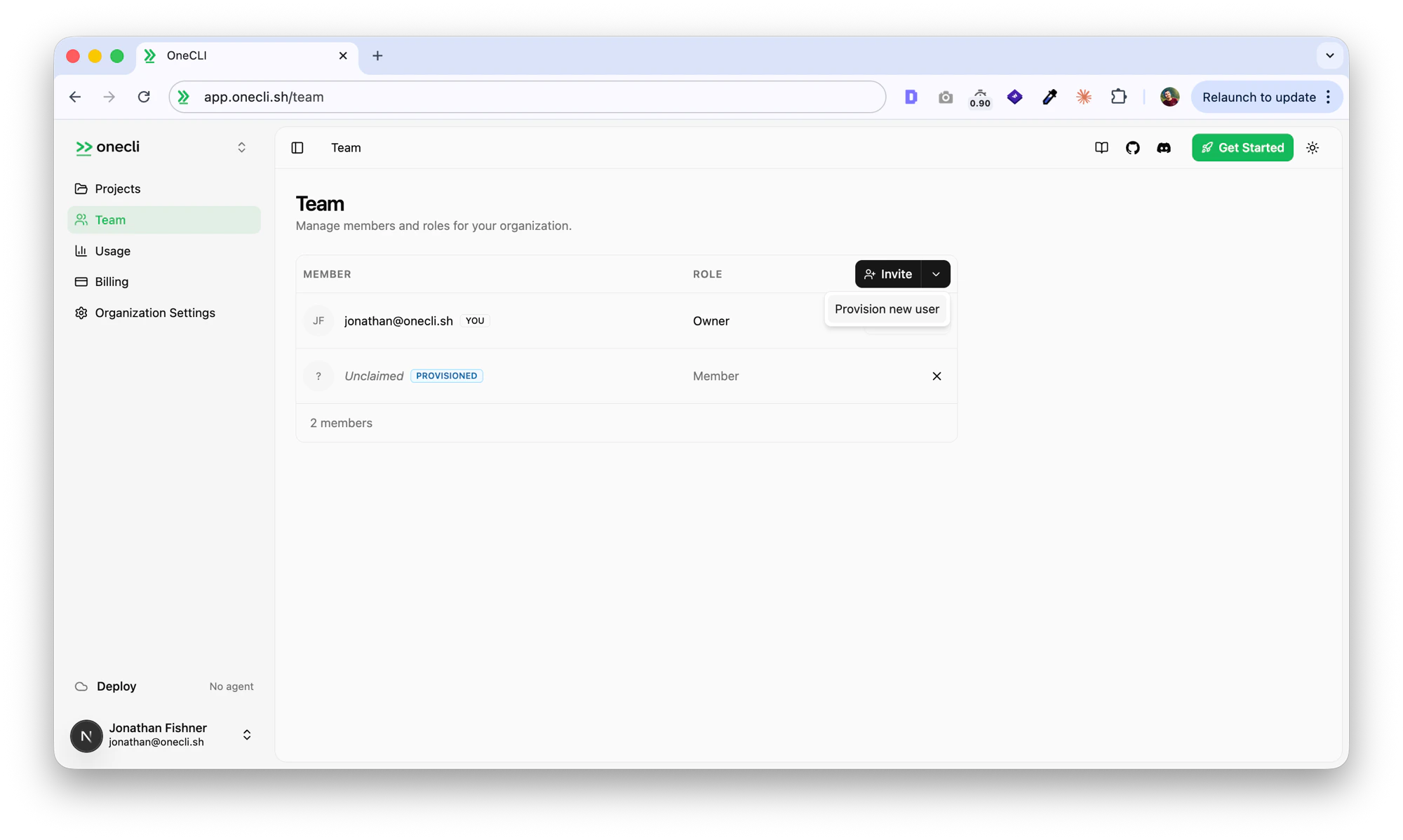
2. Click the dropdown arrow next to the **Invite** button and select **Provision new user**
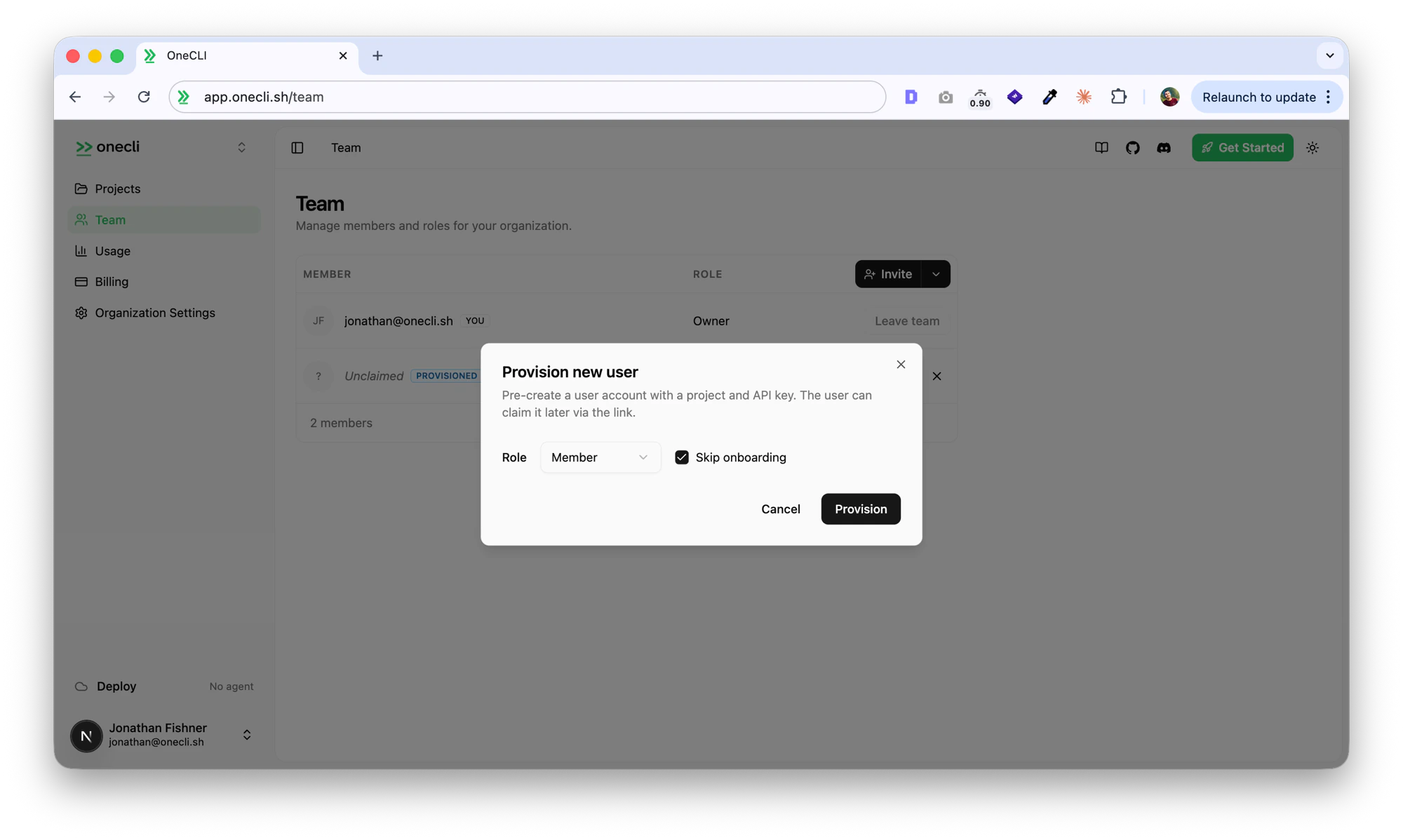
 3. Choose a role (Member or Admin) and whether to skip onboarding, then click **Provision**
 4. Copy the claim link, API key, user ID, and project ID
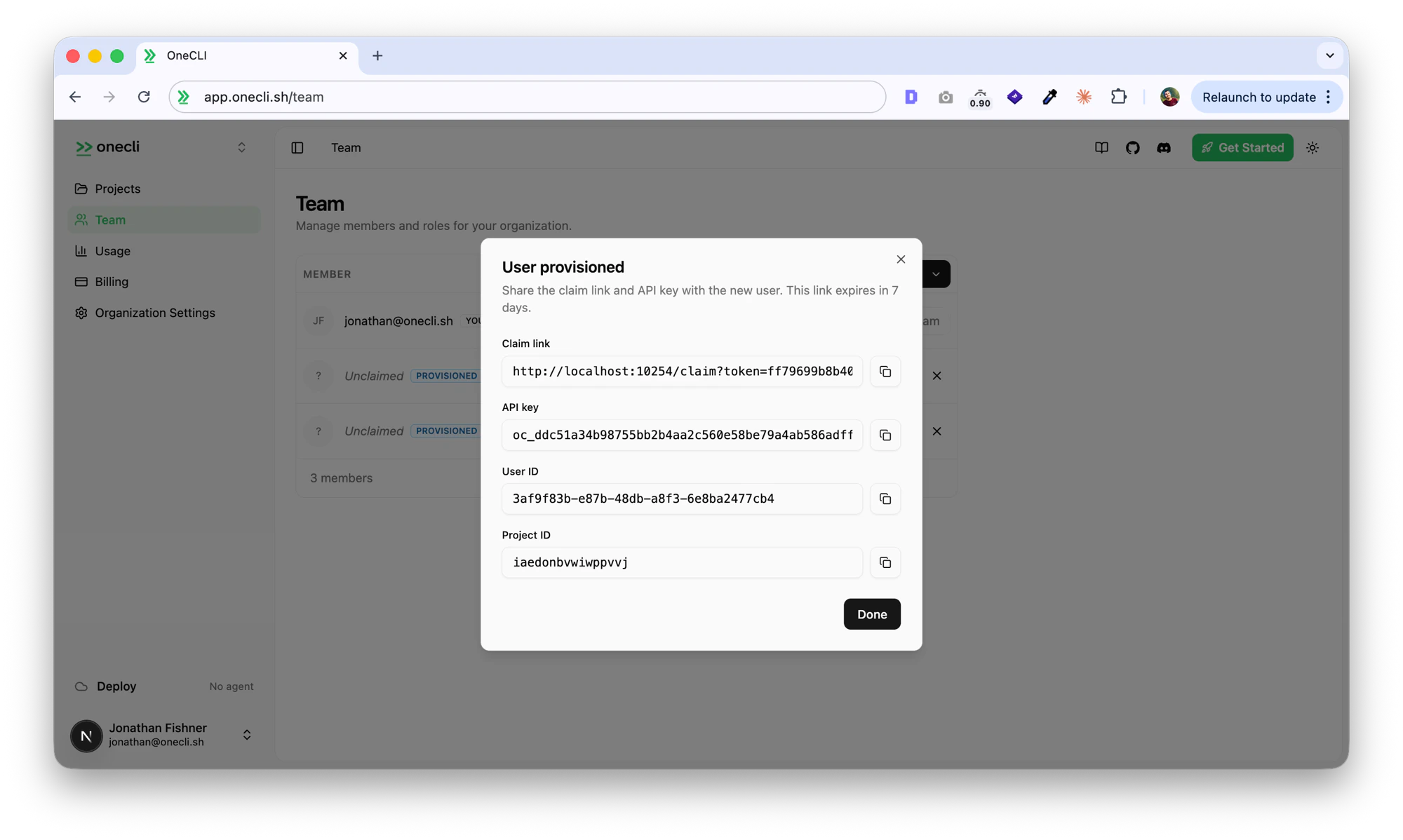 Share the claim link with the user and use the API key in your agent configuration.
## Provisioning from the SDK
Requires an API key from an admin or owner account.
```typescript theme={null}
import { OneCLI } from "@onecli-sh/sdk";
const onecli = new OneCLI({ apiKey: "oc_your_admin_key" });
const result = await onecli.provisionProject({
role: "member",
skipOnboarding: true,
});
console.log(result.apiKey); // oc_... (usable immediately)
console.log(result.claimUrl); // https://app.onecli.sh/claim?token=...
console.log(result.userId); // placeholder user ID
console.log(result.projectId); // pre-created project ID
```
### Parameters
| Parameter | Type | Default | Description |
| ---------------- | --------------------- | ---------- | ---------------------------------------------- |
| `role` | `"admin" \| "member"` | `"member"` | Role the provisioned user will have in the org |
| `skipOnboarding` | `boolean` | `true` | Whether the user skips the onboarding wizard |
### Response
| Field | Type | Description |
| ----------- | -------- | -------------------------------------------------------- |
| `id` | `string` | Provision record ID |
| `userId` | `string` | Placeholder user ID (becomes the real user after claim) |
| `projectId` | `string` | Pre-created project ID |
| `apiKey` | `string` | API key for the provisioned project (usable immediately) |
| `claimUrl` | `string` | URL the user visits to claim the account |
| `expiresAt` | `string` | Expiration timestamp (ISO 8601, 7 days from creation) |
### API endpoint
You can also call the API directly:
```bash theme={null}
curl -X POST https://api.onecli.sh/v1/team/provisions \
-H "Authorization: Bearer oc_your_admin_key" \
-H "Content-Type: application/json" \
-d '{"role": "member", "skipOnboarding": true}'
```
## Claim flow
When a provisioned user visits the claim link:
1. If not signed in, they're prompted to sign up or log in
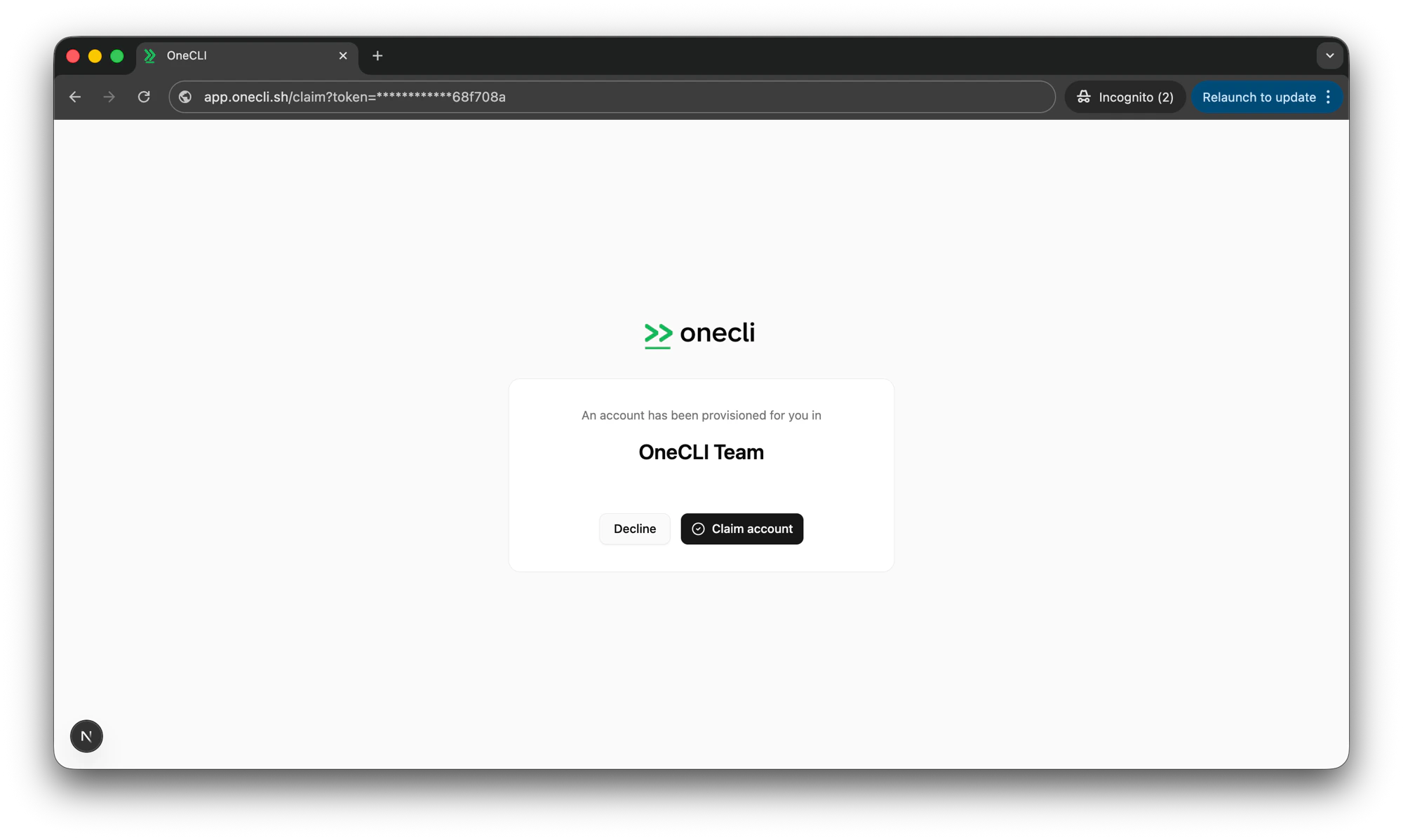
2. After authentication, they see a confirmation page with the organization name
3. Clicking **Claim account** links their identity to the provisioned account
Share the claim link with the user and use the API key in your agent configuration.
## Provisioning from the SDK
Requires an API key from an admin or owner account.
```typescript theme={null}
import { OneCLI } from "@onecli-sh/sdk";
const onecli = new OneCLI({ apiKey: "oc_your_admin_key" });
const result = await onecli.provisionProject({
role: "member",
skipOnboarding: true,
});
console.log(result.apiKey); // oc_... (usable immediately)
console.log(result.claimUrl); // https://app.onecli.sh/claim?token=...
console.log(result.userId); // placeholder user ID
console.log(result.projectId); // pre-created project ID
```
### Parameters
| Parameter | Type | Default | Description |
| ---------------- | --------------------- | ---------- | ---------------------------------------------- |
| `role` | `"admin" \| "member"` | `"member"` | Role the provisioned user will have in the org |
| `skipOnboarding` | `boolean` | `true` | Whether the user skips the onboarding wizard |
### Response
| Field | Type | Description |
| ----------- | -------- | -------------------------------------------------------- |
| `id` | `string` | Provision record ID |
| `userId` | `string` | Placeholder user ID (becomes the real user after claim) |
| `projectId` | `string` | Pre-created project ID |
| `apiKey` | `string` | API key for the provisioned project (usable immediately) |
| `claimUrl` | `string` | URL the user visits to claim the account |
| `expiresAt` | `string` | Expiration timestamp (ISO 8601, 7 days from creation) |
### API endpoint
You can also call the API directly:
```bash theme={null}
curl -X POST https://api.onecli.sh/v1/team/provisions \
-H "Authorization: Bearer oc_your_admin_key" \
-H "Content-Type: application/json" \
-d '{"role": "member", "skipOnboarding": true}'
```
## Claim flow
When a provisioned user visits the claim link:
1. If not signed in, they're prompted to sign up or log in
2. After authentication, they see a confirmation page with the organization name
3. Clicking **Claim account** links their identity to the provisioned account
 4. They're redirected to the dashboard with the provisioned org as their active context
If the user already has an OneCLI account, the provisioned project is transferred to their existing account.
## Expiry and cleanup
* Unclaimed provisions expire after **7 days**
* Expired provisions are automatically cleaned up (placeholder user, project, API key, and agent are deleted)
* Cancelled provisions are cleaned up immediately
The API key works immediately after provisioning. You don't need to wait for the user to claim the account. This lets you configure agents before the user even signs up.
4. They're redirected to the dashboard with the provisioned org as their active context
If the user already has an OneCLI account, the provisioned project is transferred to their existing account.
## Expiry and cleanup
* Unclaimed provisions expire after **7 days**
* Expired provisions are automatically cleaned up (placeholder user, project, API key, and agent are deleted)
* Cancelled provisions are cleaned up immediately
The API key works immediately after provisioning. You don't need to wait for the user to claim the account. This lets you configure agents before the user even signs up.